The words used here
- Stream: one piece of work on one branch. It holds every prompt, agent turn, note, commit and
review, in order,
until the branch lands on its target, usually
main. Renaming the branch (git branch -m) keeps it the stream's. - Turn: one round with the agent: your prompt, what the agent did, and the files it changed.
- Checkout: a git clone on your computer. Every clone of the same repository shows the same streams.
- Team server: keeps everyone's streams and runs the reviews and the merge queue. It runs inside your network.
- Step: when a branch's work goes through several streams one after another, such as a plan, the build and a review, each of them is a step. The newest is the active one.
- Reviewer: a teammate you invite to a stream. Until the work lands, only you and your reviewers see the stream; after that, the whole team can.
Work so that it holds up
Wakemark is built around a few habits of teams that get good work out of agents:
- Plan before code. A wrong line in a plan becomes hundreds of wrong lines of code, so have the agent read and plan first, and read the plan before anything is built. Give the plan its own step (Plan, build, review).
- Build from the decisions, not the whole conversation. Long sessions drift: agents follow earlier instructions less well as their context fills. The build step starts from a short summary of what the plan decided.
- Review with a fresh eye. An agent that did not write the code, in a clean step, is not biased toward it.
- Give the agent checks it can run. Builds and tests that the agent runs and reports make the checklist honest (Let the agent run your team's checks).
- Keep the why. Nothing leaves with the session: the stream stays with the commits, and ? beside a line finds it again (Find work later).
- Let it land by itself. Once reviewers and checks agree, Land when ready takes it from there (Land when ready).
Sign in and open a checkout
You can use the app alone, without signing in: your streams, the agent and the diffs all work on your computer, and you commit and push as usual. When your team has a server (Run the team server), sign in, and the streams you made alone come along.
Click Sign in to the team at the bottom of the sidebar, and enter your team server's address, your email and your password. Your admin gives you the address and an invite code for your first sign-in.
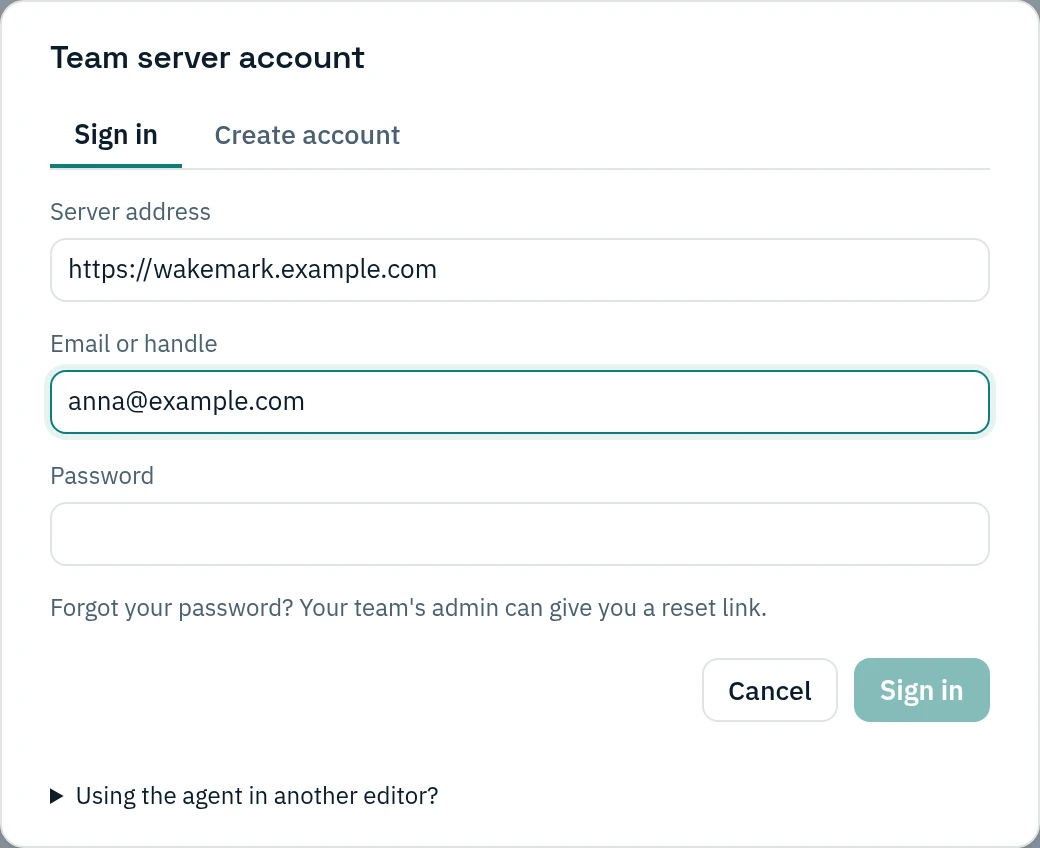
After the first sign-in the app keeps working when the team server is out of reach, and syncs when it can reach it again. The agent still needs its model provider.
To open a checkout, click Open… at the top of the sidebar and pick its folder; if you close the folder picker, a box for the path opens instead. A folder that is not a git checkout opens New stream on it. The app needs Git 2.38 or newer; without it, it says how to get Git for your system, and Restart Wakemark once it is in.
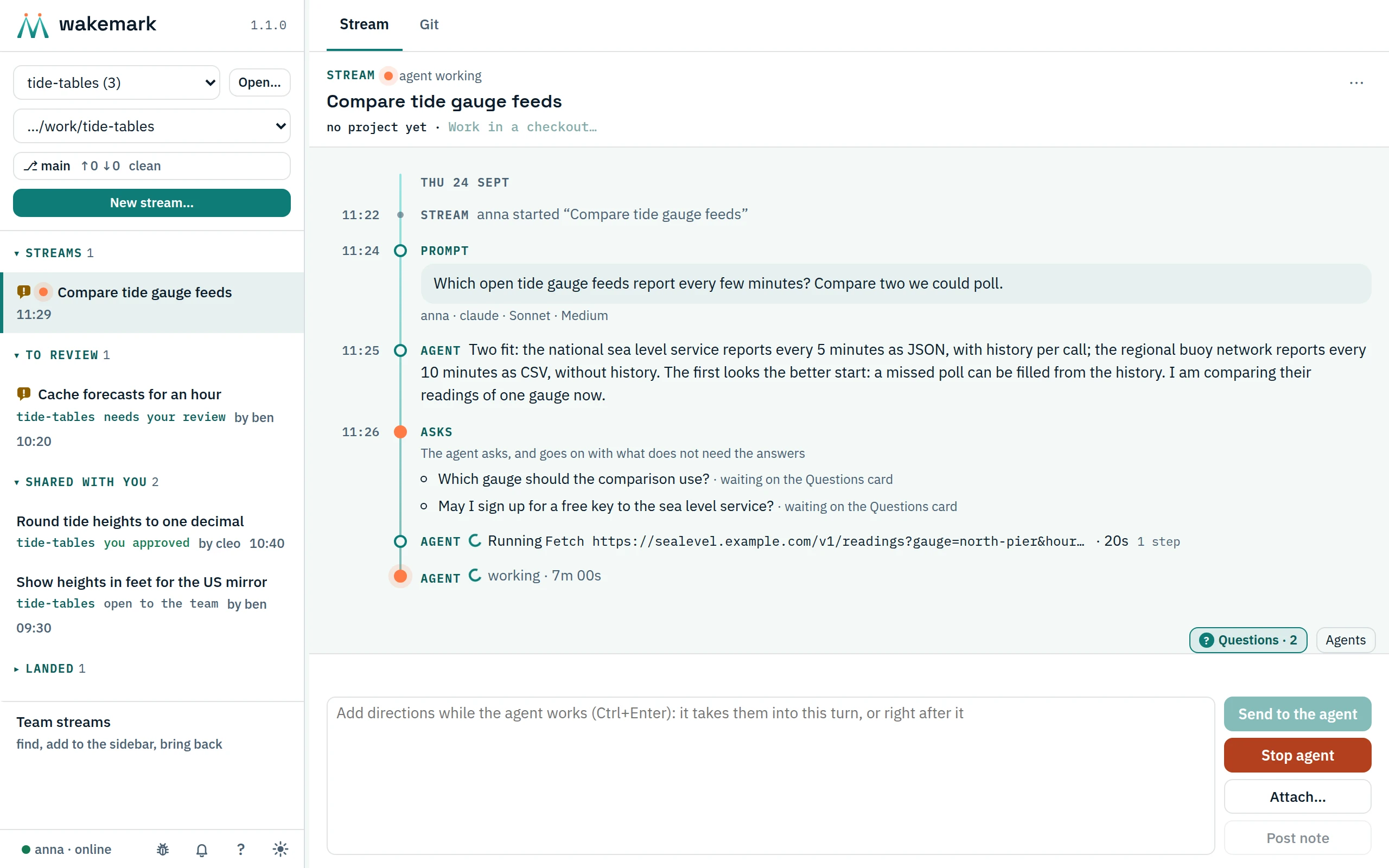
The top of the sidebar is where new work starts: the project, its checkout, and New stream…. Manage projects… in the project list and Manage checkouts… in the checkout list switch to another one or forget one; forgetting deletes nothing. The lists below show every project, so an agent busy in one project stays in view while you work in another. With work in several projects, your streams are under each project's name, in alphabetical order; click a name to fold that project's streams away or back. Streams are listed newest first and keep their places while they work. An amber speech bubble beside a stream, or a folded project, means it waits for you: its agent asks something, its landing needs you, or it waits for your review; point at it to see what for. A breathing ring means it is armed: its agent carries on by itself later, such as when a build it left running finishes or a check it left pending is due again. The stream then ends with Carries on by itself at … and what it waits for. A command left running shows on the line of the turn that started it: while it runs, and once it has ended, with woke the agent and what the agent made of it. Show what the agent did opens the turns it was woken for. Closing Wakemark stops what an agent left running; when you open it again, the agent is told so.
Start a stream
Click New stream… and choose where the work goes. On a new branch is the usual choice. On the checked-out branch makes the branch's commits so far the stream's. The title is optional: your first prompt names the stream.
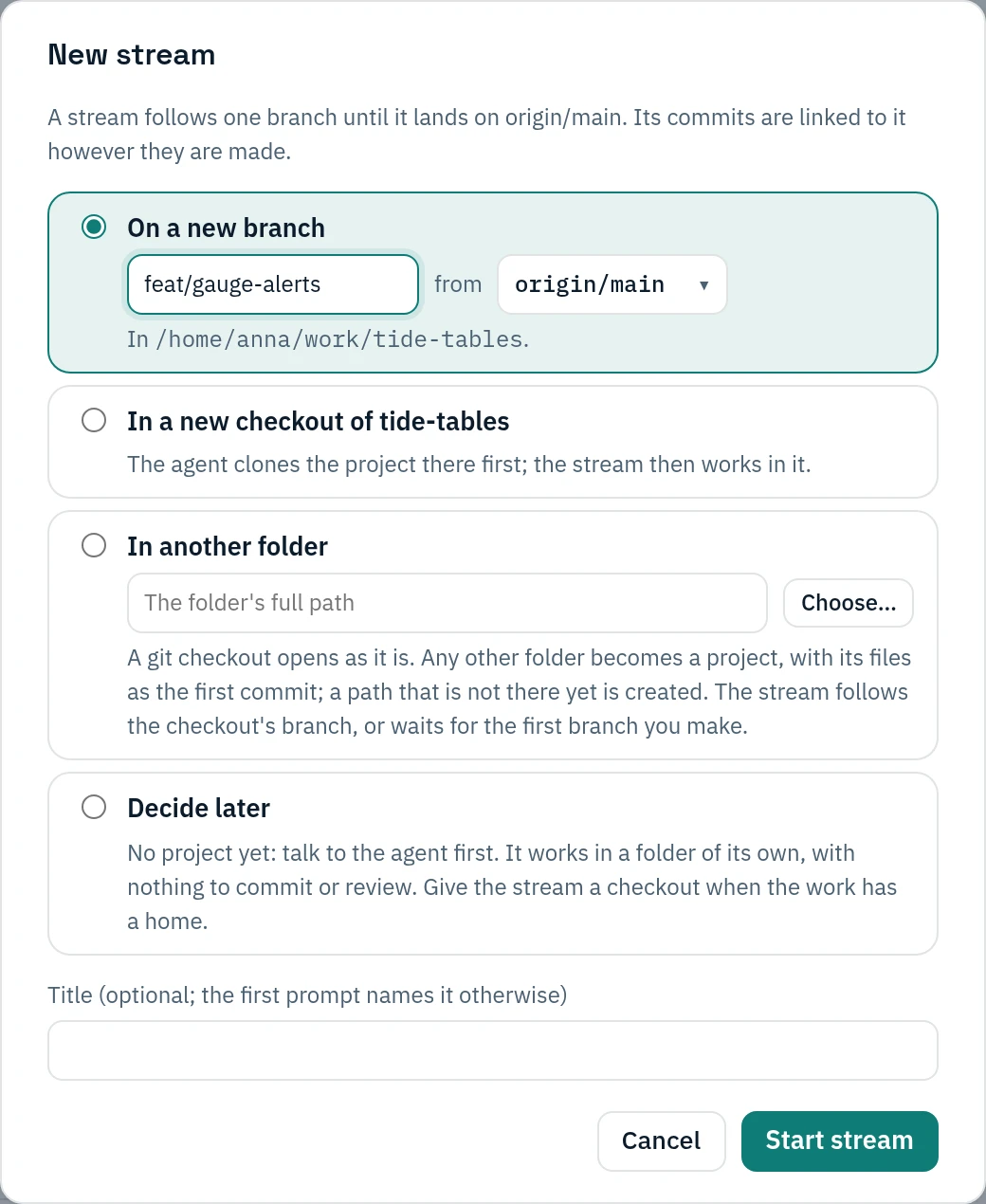
New stream… works with or without a checkout open. A stream can also start In a new
checkout of the
project, which the agent clones first (Start stream and check out; the stream moves into it once
the clone is
whole, also one the agent left running), or In another folder: a git checkout
opens as it is, any other folder becomes a project whose first commit holds its files (files that look like
secrets, and files over 10 MB, stay out), and a path that is not there yet starts with an empty first commit on
main.
Decide later starts the stream with no project: talk to the agent first. The header then says no project yet, with Work in a checkout…, and the stream's Git tab offers Create a git repository… in a folder of your choice or Use an existing checkout…. Either moves the stream there with its history. The agent can move it too, when you ask it to.
You can also just ask. With no stream open, even before you have any project, the box at the bottom asks the agent: Ask agent starts a stream with no project yet, named after what you asked, and the agent starts on it, such as cloning a project or making a new one, and moving the stream there.
Plan, build, review
Anna starts with a plan. In a stream on her new branch, Plan the gauge alerts, she asks the agent to read the poller and the status page and write down what it would do, what it decided and what is still open, without changing any code. She reads the plan, and when it is right, she starts the build as the plan's next step: Next step on this branch… in the stream's ⋯ menu.
A next step is a stream of its own that takes the branch over: its new commits, its review and its landing are the new stream's from then on. Its agent begins from What came before, a short summary of what the earlier step did and decided (a first prompt waits for it), instead of the whole planning conversation. For a review, A clean start gives the agent only the code and the commits, so it doesn't lean on the reasoning it is meant to check, and the step can use another agent: Codex to review what Claude built, for example.
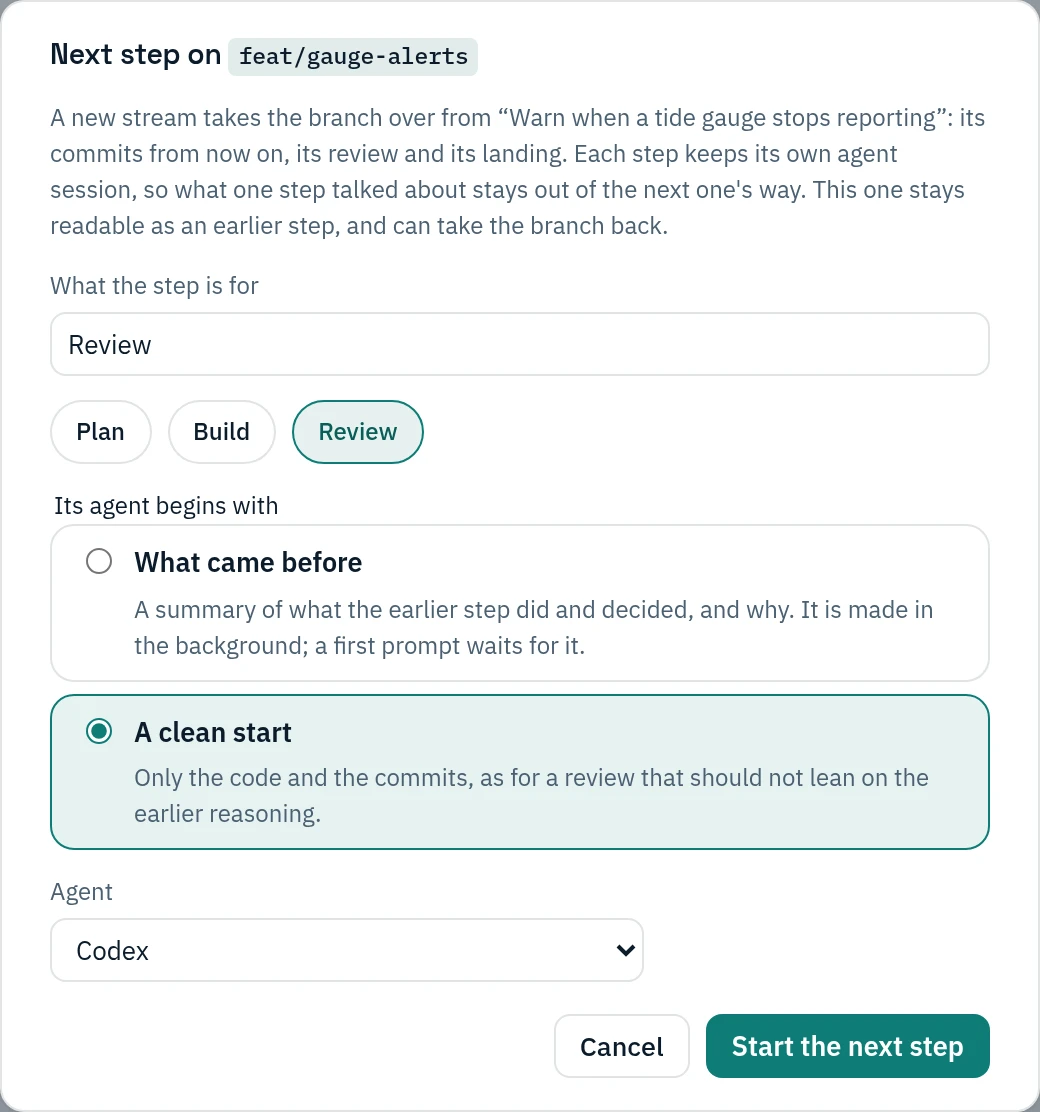
- The stream header shows the steps, such as Steps: Plan the gauge alerts › this step, and the sidebar lists the branch once, with how many steps it has.
- An earlier step stays readable. Make this the active step again hands the branch back to it.
- Reviewers come along to the new step. An approval of the same change counts in every step, and open comments of earlier steps count until they are resolved. Once the active step lands, every step shows as landed.
- History and the agents' search tell which step made each commit.
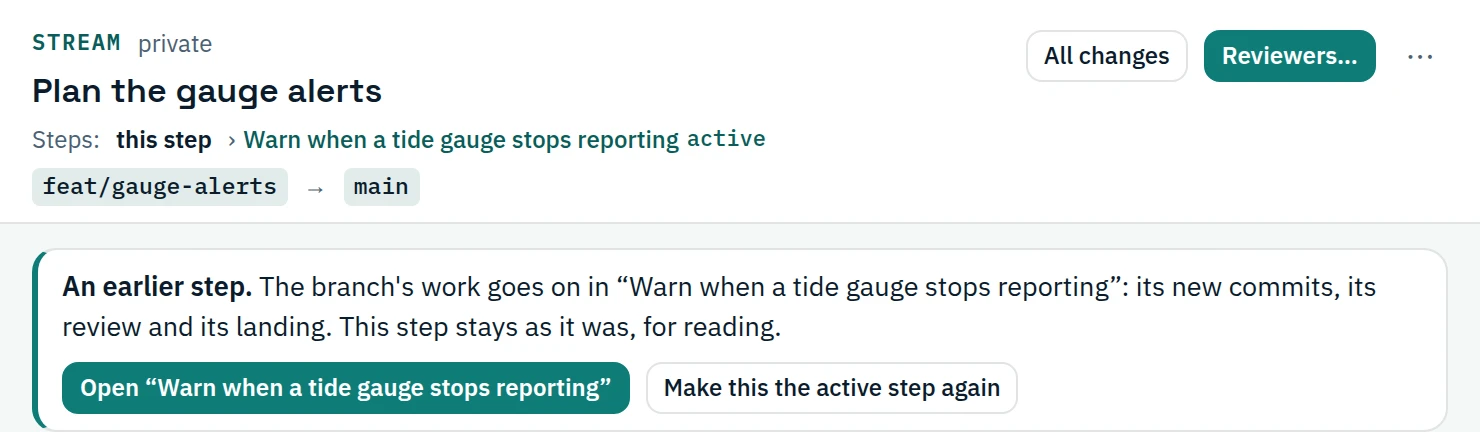
Steps are for when they help. One stream per branch works just as well for small changes; New stream… also offers Continue it in a new stream… when the checked-out branch already has one.
The stream's ⋯ menu
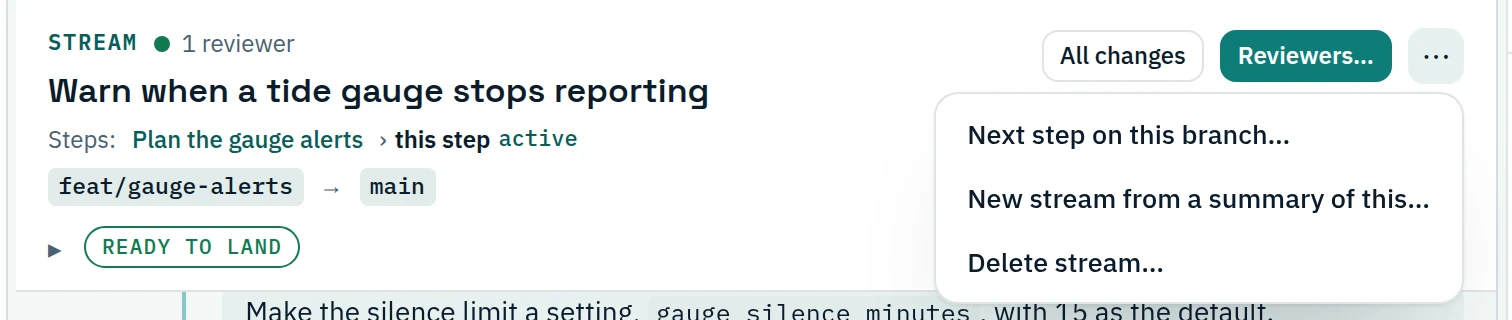
- New stream from a summary of this… starts a stream in this checkout whose agent begins from a summary of this one.
- Delete stream… removes your stream from this computer, and says first whether the team server keeps a copy. It also ends what its agent left running: its subagents, and commands such as a dev server or a browser. For someone else's stream or a landed one, Hide from the sidebar puts it away; it comes back when it needs your review.
- When the stream works in another checkout than the one open, the header names it, with Open that checkout, and the menu offers Continue in this checkout, which moves the stream to the open one.
- When your checkout is on another branch than the stream's, the header says so, with Switch to ….
Work with the agent
Type what you want in the box at the bottom and press Ask agent (Ctrl+Enter). Above the box you pick the agent and its model and effort. Claude, Codex and Gemini are built in, each with your own login; More agents… at the end of that list adds others (More agents). The app starts the built-in agents with Node.js, so install it first; the first start of each agent downloads its adapter (see Settings for IT and power users).
Each agent uses the sign-in of its own command-line tool, not of its desktop app. For Claude, that is Claude
Code:
install it with npm install -g @anthropic-ai/claude-code, run claude in a terminal and
sign in (or set
ANTHROPIC_API_KEY). Codex signs in with codex login or OPENAI_API_KEY, and
Gemini with GEMINI_API_KEY or
Vertex AI. When an agent is not signed in, its turn stops with Sign in to …, which opens a terminal
for the
sign-in, and Send it again for afterwards.
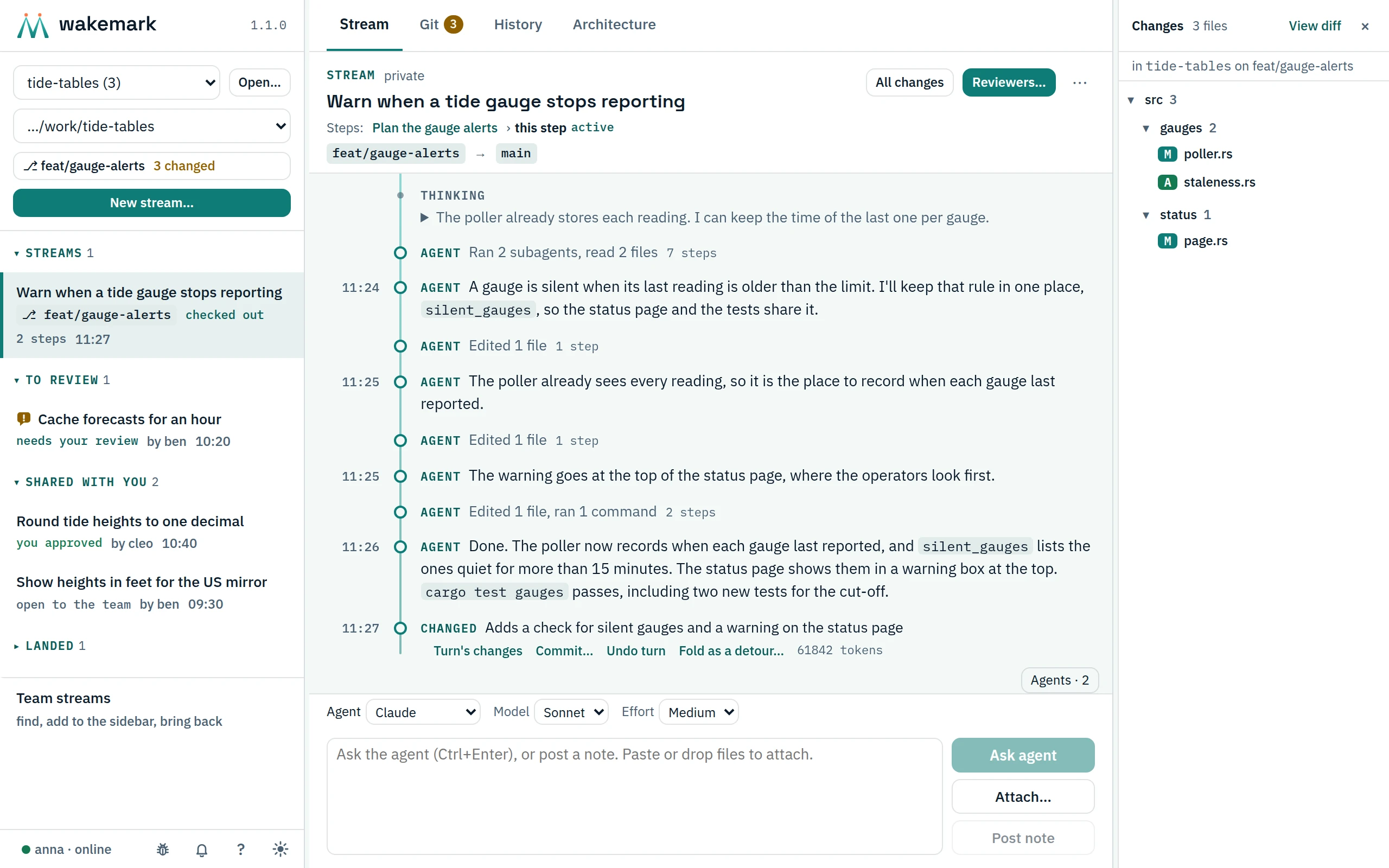
- Under each prompt, a line names who sent it and the agent, model and effort that answered.
- Each turn ends with one line saying what changed, and how many tokens the turn used. Turn's changes opens its diff; Commit… on the last turn's line, while the checkout holds uncommitted changes, opens the Git view. Undo turn puts the files back and removes the turn from what the agent remembers.
- Post note adds a note for the team. The agent reads notes too.
- You can send another message while the agent works, with pictures or files attached. It joins the turn, or waits for the next one.
- An agent that goes quiet for ten minutes with nothing running and nothing asked of you gets one message from Wakemark asking it to answer or say what it is waiting for. The stream shows only the agent's answer.
- When the agent plans first (Claude's plan mode) and asks to go ahead, the plan shows in the stream, rendered, with the agent's choices under it (Yes, and auto-accept edits, No, keep planning). Nothing else waits on it: read it, work in other streams, and pick a choice when you are ready. Click the plan's line to fold it; it stays in the stream with what you chose.
- The agent keeps the whole stream as its context, also after you restart the app or switch agents. Past 150,000 tokens, the row above the message box says how many every tool call reads, with Compress the context, which shortens what the agent reads; the transcript keeps everything.
Prefer the agent in your editor? Keep it there: Keep your editor.
Subagents
The agent may run subagents, as Claude does with its Task tool, background agents and workflows. The button above the message box, in the same place in every stream, opens a card of every agent the stream's agent ran: those working first, then the earlier ones, newest first, under the time and prompt of the turn that ran them. It says 2 agents working while some work, Agents · 7 once they are done, and Agents before the first.
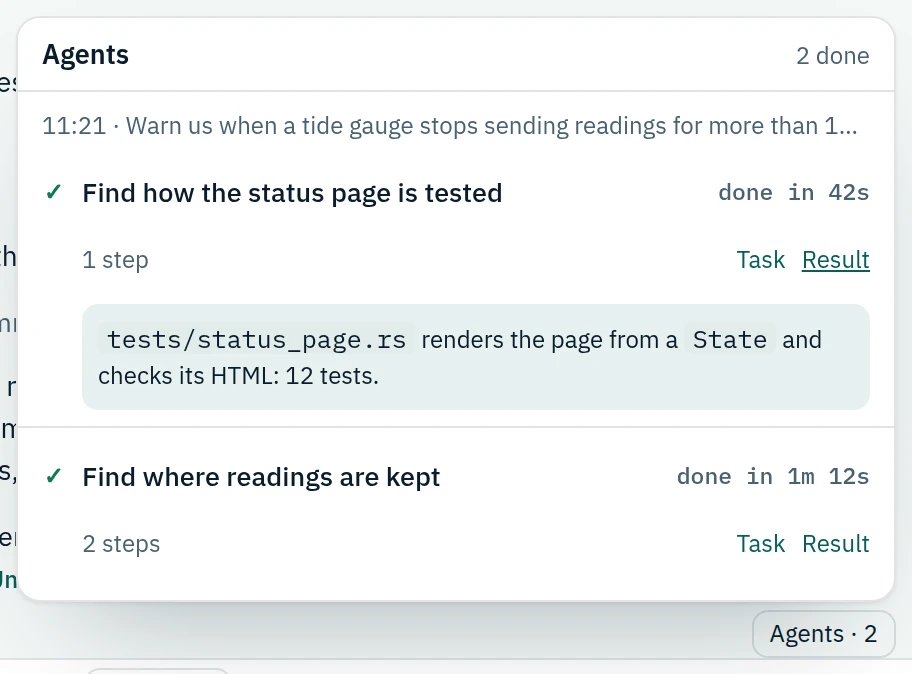
- Each agent has a line with how long it ran or how it ended, then its steps, and, folded, its Task and its Result. A workflow also says how many of its agents are done and which model they run on, also after the agent resumed it. If its progress cannot be read, it says so, and how long ago it was launched.
- Click an agent's name to bring up its line in the stream.
- Agents left working after the turn keep the stream working in the background, and what they do is recorded as a turn of the agent's own. Compressing the context, switching the agent and undoing a turn wait until they are done, as these would end them.
- The card reads the stream's record, so it keeps agents of earlier sessions and from before a restart. One that was still working when the app stopped shows as ended, except a workflow that still runs: the card follows it on.
Questions from the agent
When the agent needs something only you can give, such as a decision your request leaves open or a permission beyond what it may do, it asks and carries on with the rest. Questions · 2 then shows beside the agents button, and an amber speech bubble beside the stream in the sidebar.
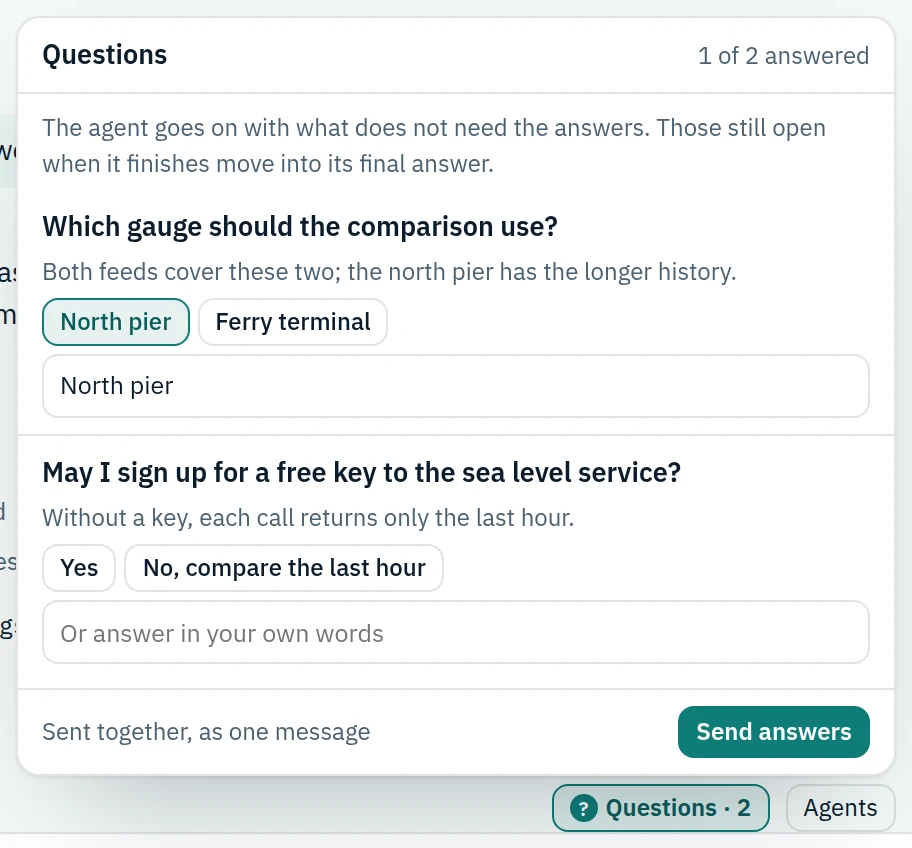
- Pick an answer or type one, for as many questions as you like, and click Send answers: they reach the working agent together, as one message. Ctrl+Enter in a box sends them too.
- Nothing waits for the card. Keep typing, or work in other streams; one card is open at a time.
- The questions stay on the card for as long as the agent works, also while its subagents, workflows or background commands carry on after a turn. Those still open when all of that has finished leave the card and show under its final answer. Answer them by replying.
- The stream keeps the questions and your answers, and a notification tells you when the agent asks.
Detours
Not every turn leads somewhere: a wrong approach, a fight with the build environment, a command that stopped. Such turns fold into one line with what they showed, in the transcript, the review and new agent sessions. When they are the agent's latest turns, the agent forgets them too, told only the lesson.
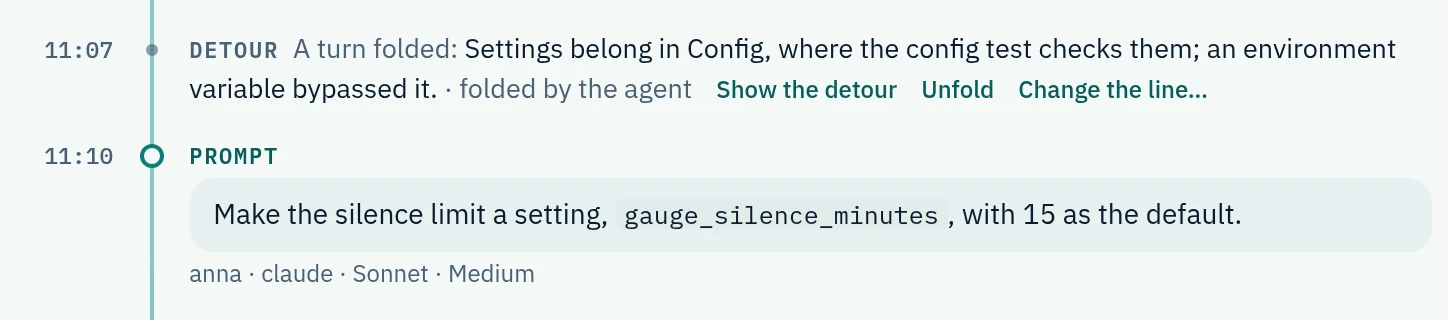
- Fold as a detour… on a turn's last line folds that turn, and the turns after it you pick. Wakemark writes the line on what was wrong and what worked; Change the line… edits it.
- The agent folds its own wrong turns once a later turn found what works. Wakemark folds a turn that stopped when you send the same prompt again, and a check's earlier looks at a commit under its last verdict there.
- Show the detour opens the turns where they were, and Unfold takes the fold back. Search still finds them, and a line of code still leads to the turn that wrote it.
- When a detour is the stream's latest work, Redo cleanly… undoes its turns and asks its first prompt again in a new agent session, told what the detour showed. It spends the tokens of that work again.
More agents
Wakemark works with any coding agent that speaks the Agent Client Protocol (ACP). More agents… in the agent list opens Agents: the agents you have, and the ACP Registry, a public list of about 40 agents such as GitHub Copilot, Cursor, goose, OpenCode, Qwen Code, Mistral Vibe, Kimi and Junie. Find one by its name, its maker or what it does; Run here leaves out those with nothing for your system.
- Add puts the agent in the agent list of every stream. Agents that run with
npxneed Node.js, and those that run withuvxneed uv; when your computer lacks one, the agent says so, with Restart Wakemark for afterwards. - Other agents download once into Wakemark's data folder, checked against the checksum the registry lists; where it lists none, a later download must be the same file as the first.
- An added agent stays at the version you added. Update to … shows when the registry has a newer one.
- Add your own… takes any program that speaks ACP: a name, the command, its arguments and its environment.
- Try it starts it and tells what it can do: continue its sessions after a restart, take images, use Wakemark's tools, and how it signs in. Wakemark works with what it has.
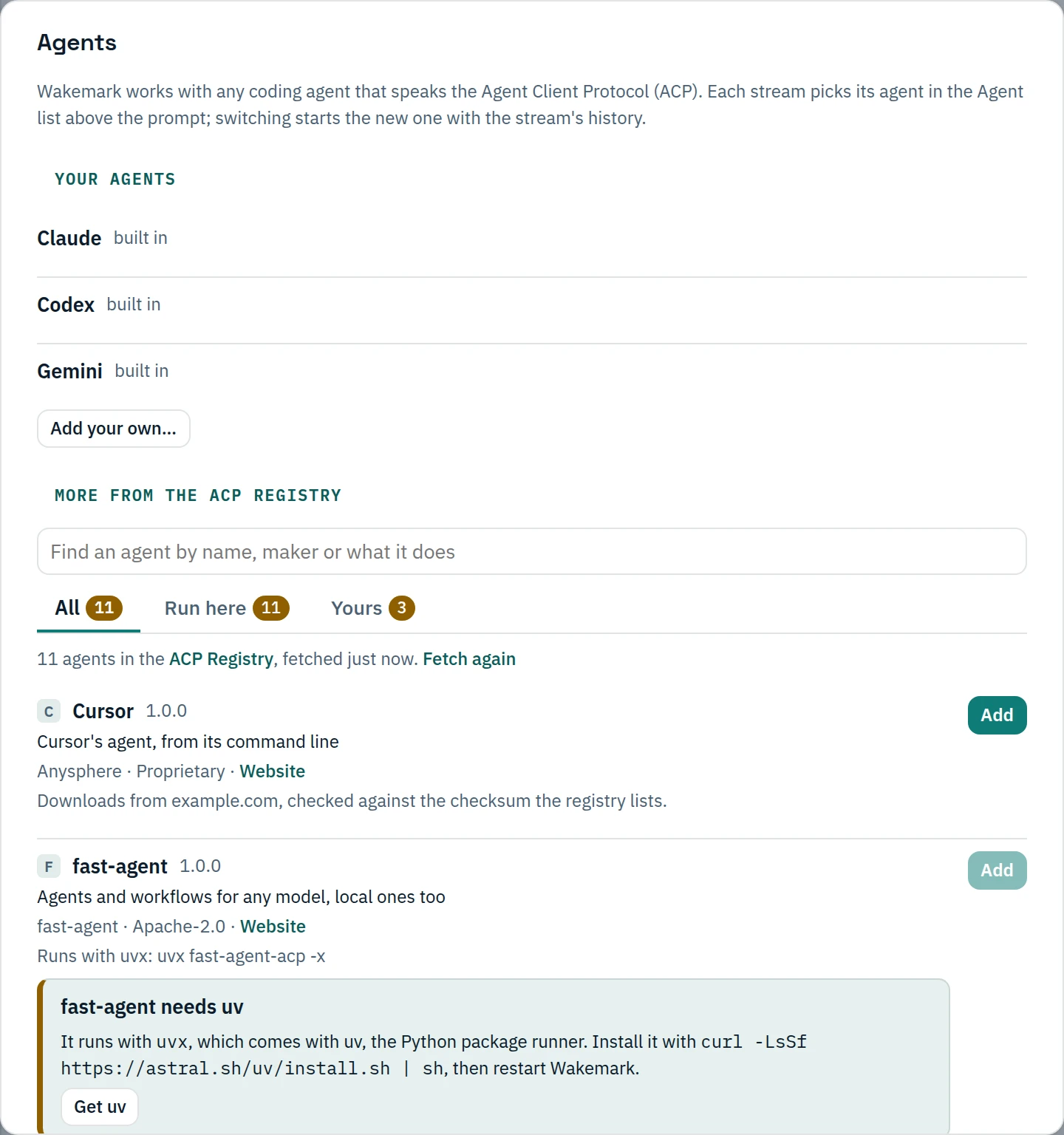
The app fetches the registry's list once a day; without the network it uses the list it has, and says so.
Keep your editor
You don't have to leave your editor for Wakemark. JetBrains IDEs, Zed, VS Code (with the ACP Client
extension),
Neovim, Xcode, Emacs, Qt Creator and others can run a coding agent through the Agent Client Protocol. Give them
wakemark-acp as that agent: it starts the real agent, passes everything through unchanged, and Wakemark
records
the work in the same streams.
wakemark-acp comes with the app. Click your name at the bottom of the sidebar and open Other
editors: it
shows where wakemark-acp is, and for your editor where to add it, with the settings to paste, filled
in.
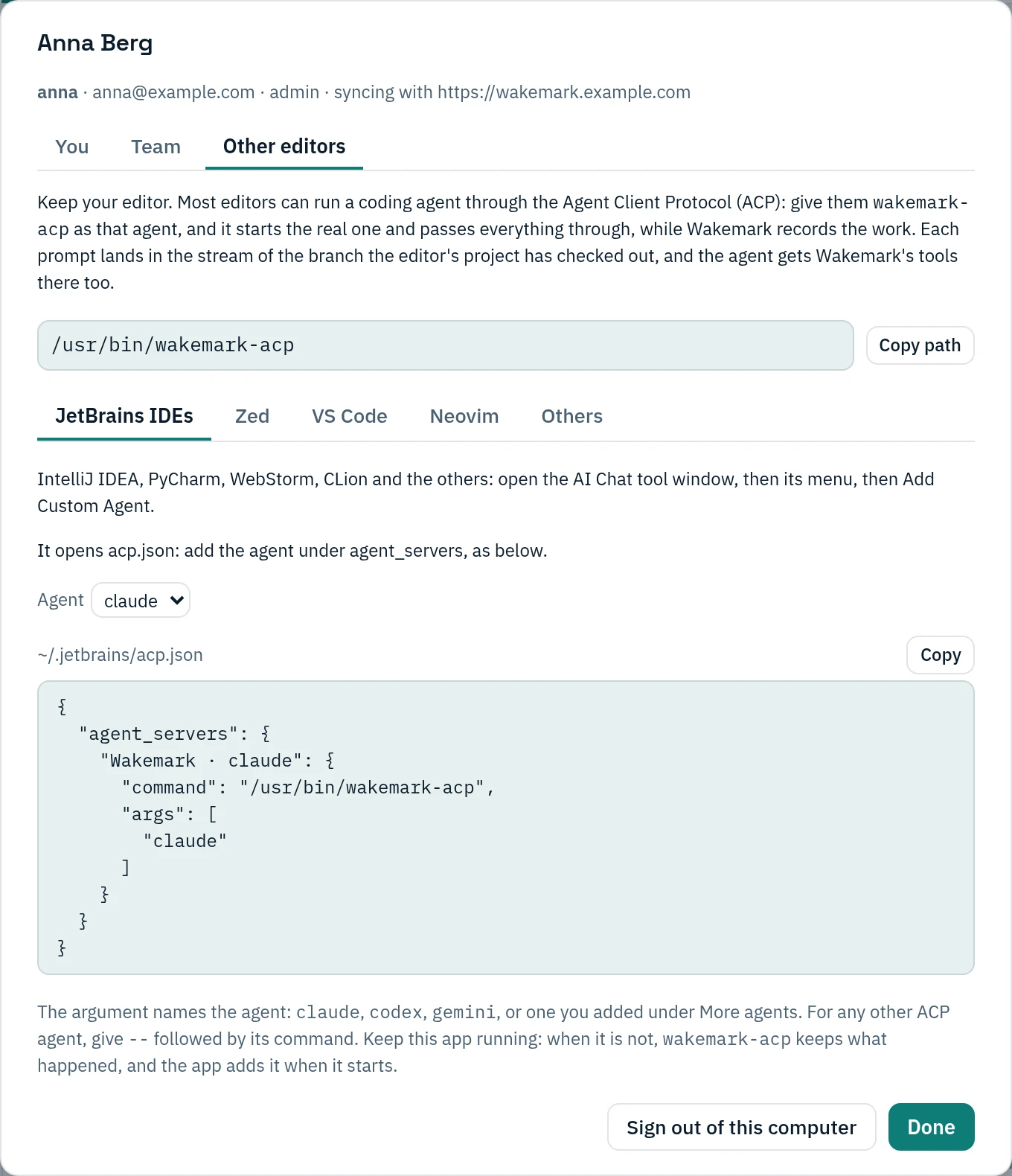
The agent's argument names which agent runs: claude, codex, gemini,
or one you added under More agents…,
such as goose. For any other ACP agent, give -- followed by its command. Then work in the
editor as before:
- Each prompt, with everything the agent does for it, lands in the stream of the branch the editor's project has checked out. A branch without a stream gets a new one. The prompt shows which editor it came from.
- The agent has Wakemark's tools there too: it looks up its stream and review, searches the project's other streams, finds why code reads as it does, and uses the merge queue. Before each prompt it hears what happened in the stream since it last looked, such as a teammate's comment.
- Keep the Wakemark app running. When it is not,
wakemark-acpkeeps what happened, and the app adds it when it starts.
See the changes
The Changes panel on the right lists the files that are not committed yet. Inside a submodule, it and All changes list the files git tracks and the new ones the stream made, not the build output a build leaves there. Turn's changes under a turn shows that turn's diff, and All changes in the stream's header shows What lands: the branch as it would go onto main, with Not committed yet a tab away, which shows every new file. Before the branch has commits it shows Changes so far: everything since the branch forked from main, with what is not committed yet, so a new branch shows nothing until it changes something. When the change reaches into submodules, the file list starts each one with a line saying where it stands: its branch, its commits, and what it still needs before it can land.
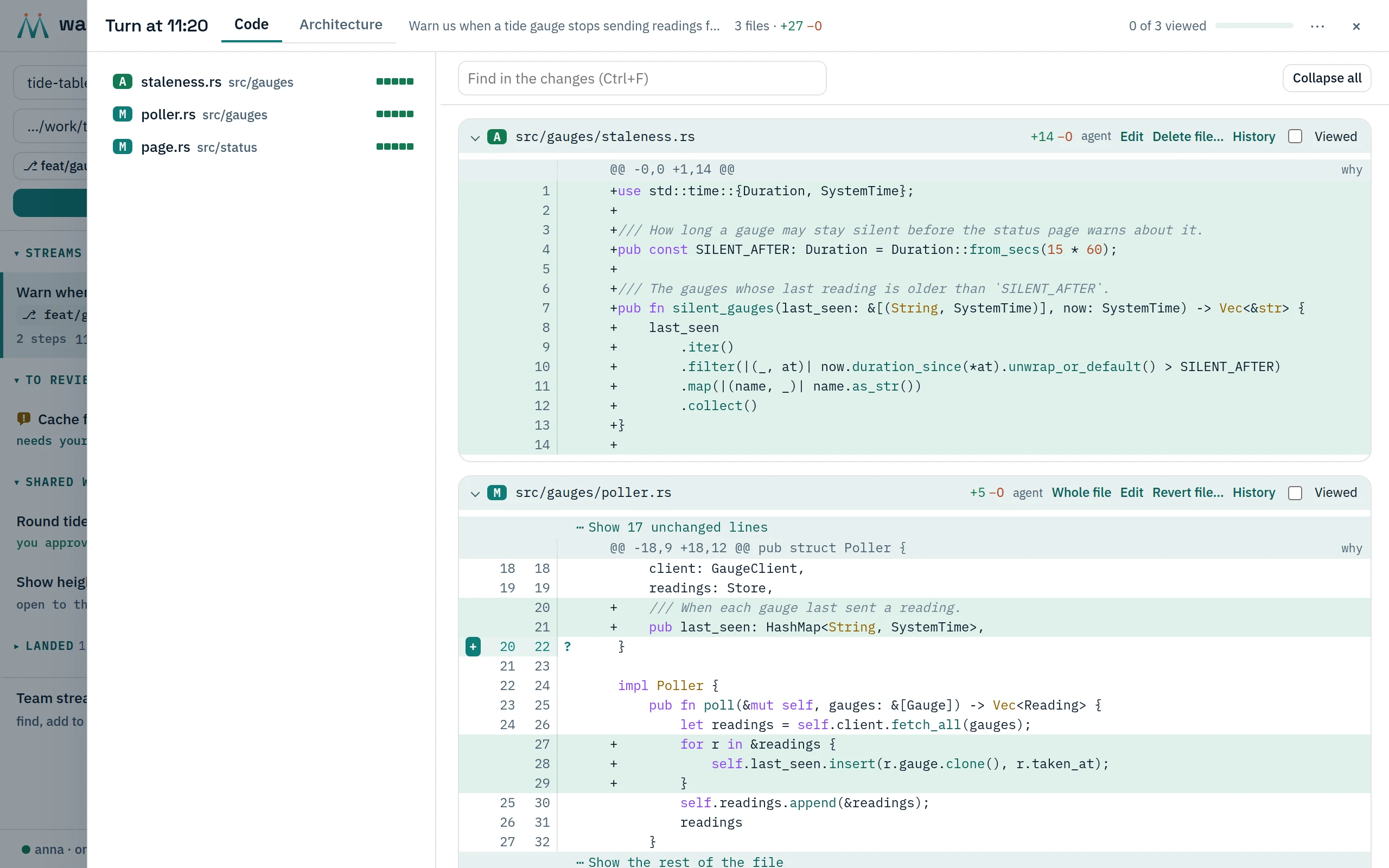
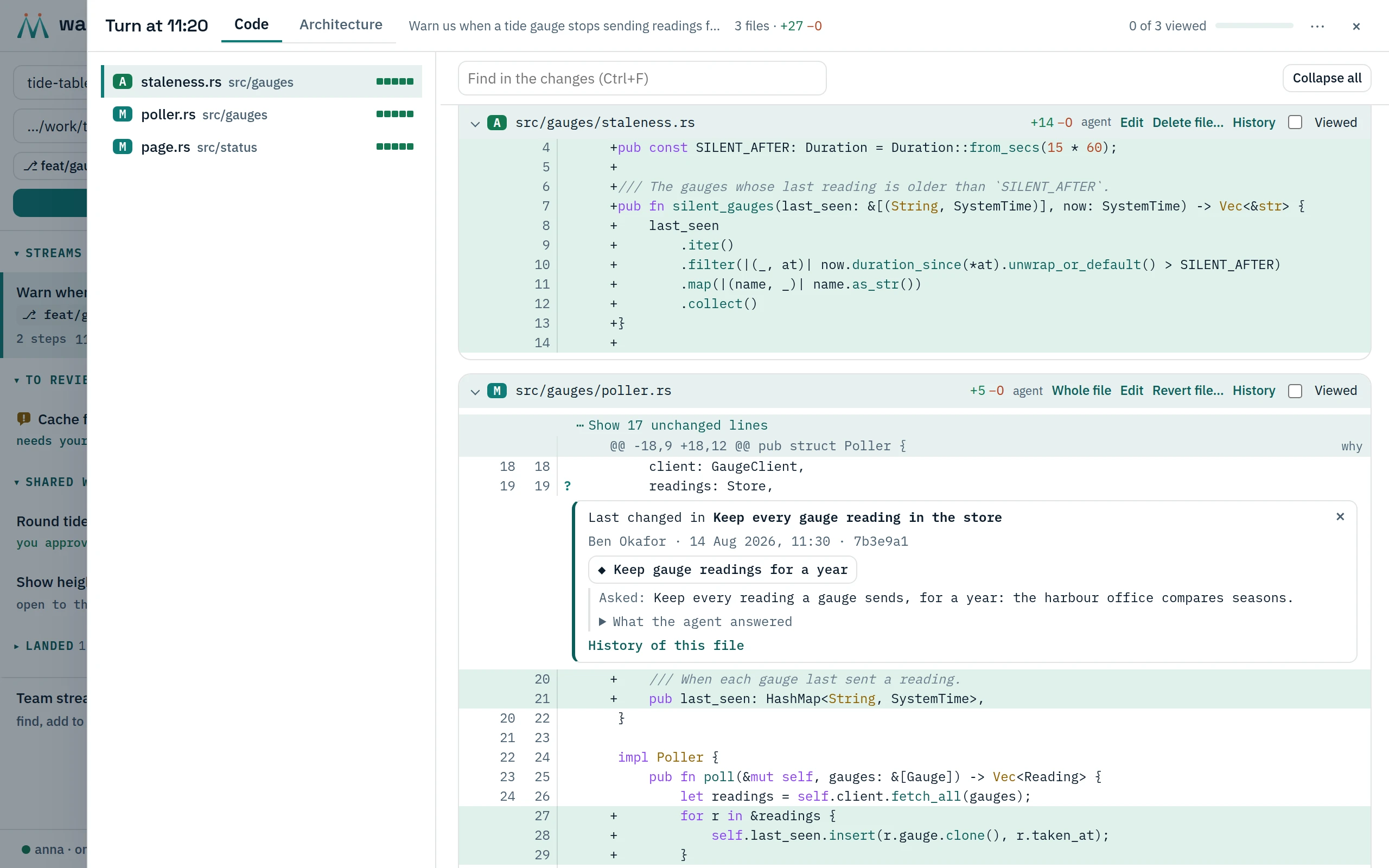
Show … unchanged lines and Whole file show more of a file than its changes. A file with a very long diff scrolls its whole length: what is not read yet is read as you scroll to it, and only the lines near the screen are drawn, so it stays quick; find looks in what has been read. To narrow a large diff, click files or submodules in the list, or type a name in Find in the changes to see only the changes holding it, such as a function and its uses. Show files in folders in the ⋯ menu lists the files in folders that fold; Alt+click folds or opens everything beside it. To comment on a line, hover it and click +. To find out why a line is as it is, click ? beside it: you see the commit that last changed it and the stream it came from, where the reasons were discussed. On a line the change adds or takes out, ? names the turn or the edit by hand that did it, and why those lines changed.
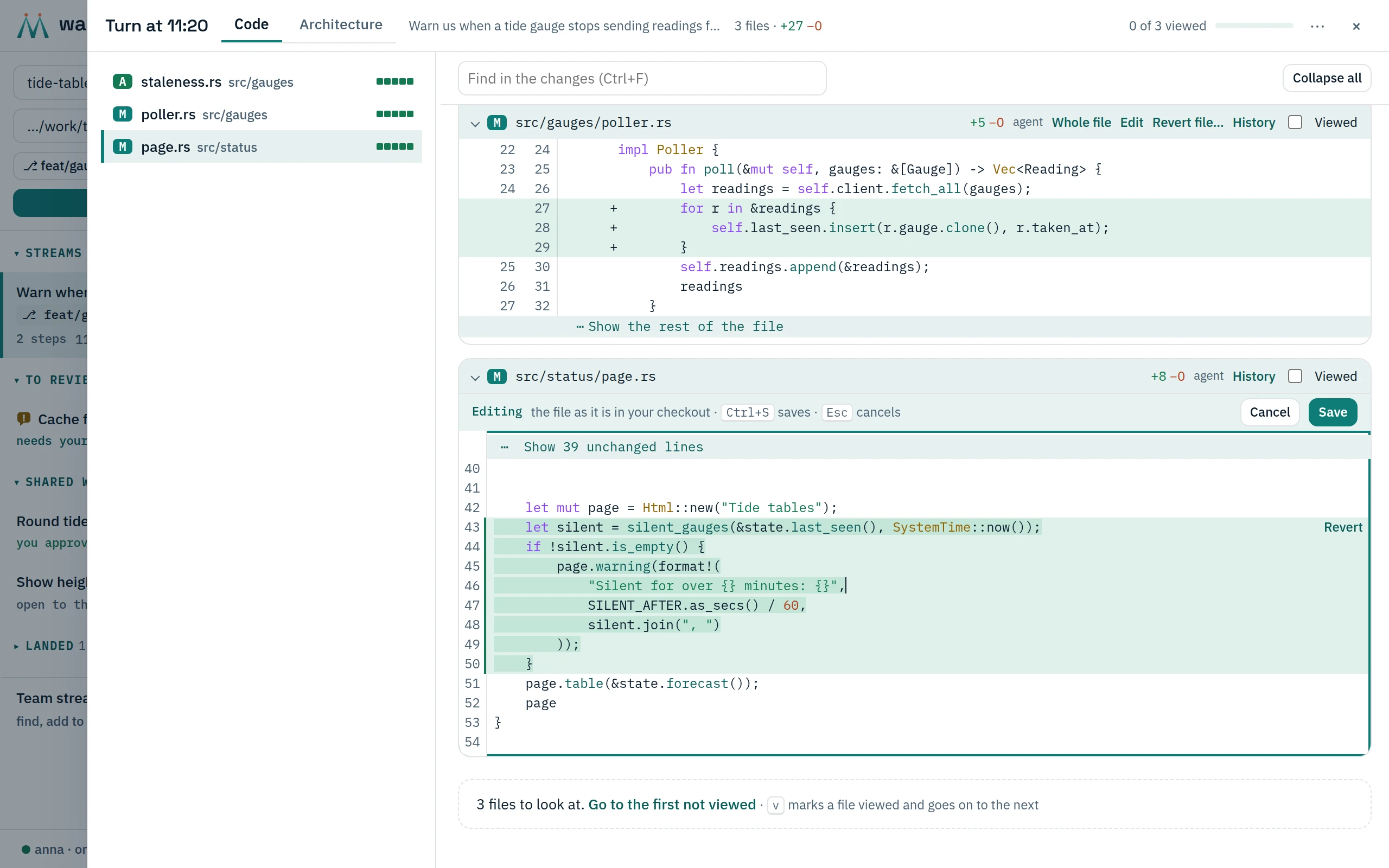
To fix something small yourself, such as a name or a message, click Edit on the file. It opens as it is in your checkout, with its changes still marked, and Ctrl+S saves it. The agent hears of your edit before its next prompt. With a name in Find in the changes, Rename… renames it on every line of the change that holds it.
To drop a change instead, ↶ beside a line undoes that line, Revert hunk a hunk of a file with more than one, and Revert file… the whole file (Delete file… for a new file, Restore file… for a deleted one). While you edit, Revert beside each change does the same. Undo stays at the top of the diff.
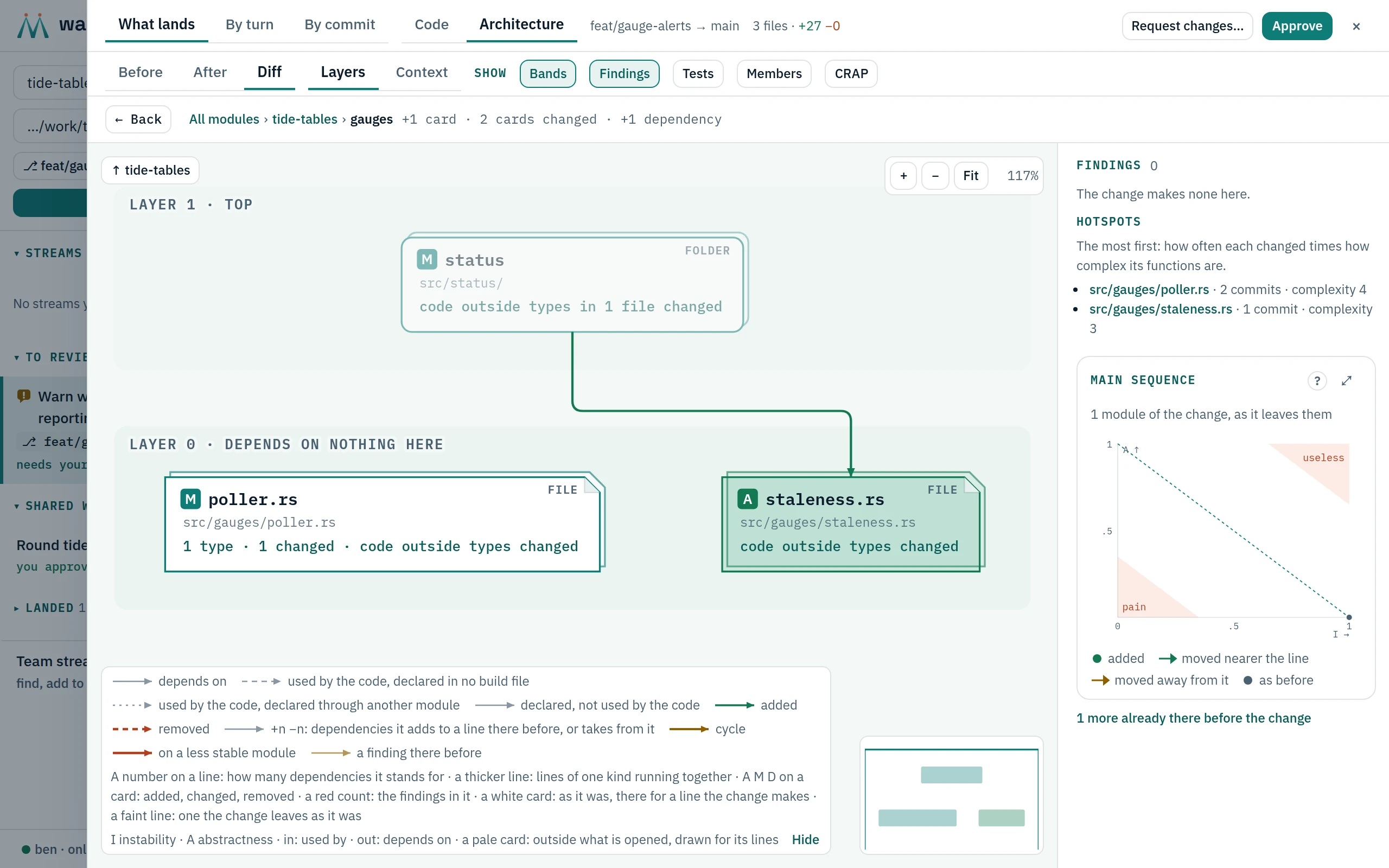
Architecture in the diff's header shows what the same changes do to the project's structure: see the next section.
See what a change does to the architecture
Architecture in the diff's header draws the project one level above the lines. Its modules are the apps and libraries the build files declare: Cargo crates, npm and pnpm packages, CMake and qmake targets, Go and Python packages, Maven and Gradle modules and .NET projects, in submodules too. Code no build file names gets a module of its folder. Wakemark reads them itself from the files, without building anything, and reads a stream's architecture ahead in the background.
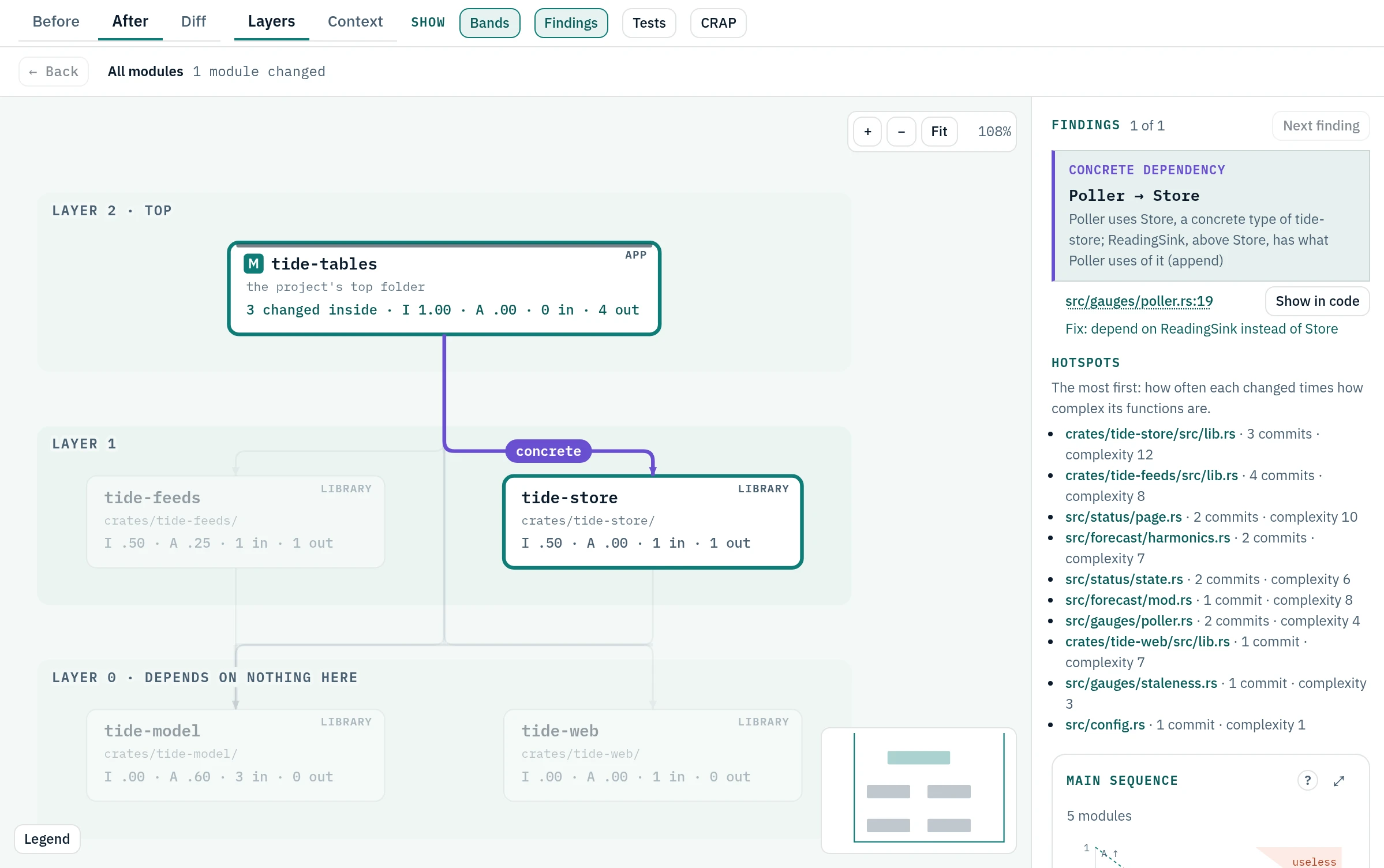
- Before draws the project as it was, After all of it as the changes leave it, with what they add, change and remove marked as in the file list.
- Diff draws the changes alone: what they touch, and whatever their new dependencies and findings join.
- Tests, examples and benchmarks are left out of the drawing and the numbers until you turn on Tests.
Find your way
One click picks a card: its lines light up, and the column says what it is, what it uses and what uses it. A double click goes into it: a folder opens, a module shows its folders and files, a file its classes, interfaces and traits with what each extends, implements and uses. The trail above the drawing says where you are; ← Back or Backspace goes back a step, and ↑ up a level. Drag to move, use the wheel or + and − to zoom, and 0 to see it all.
Layers puts each level's cards in bands with every dependency pointing down, so one pointing up stands out. Context shows one place at a time: what it holds in the middle, what it uses on the right and what uses it on the left, with how many uses join them.
- A large project shows its repositories and folders as cards first, with how many modules each holds.
- Lines of one kind going the same way run together as one thicker line, with how many it stands for.
- A dashed line is code using a module no build file declares; a faint one, a declared dependency the code does not use. Legend explains every line.
- Members lists each card's methods, fields and functions; in Diff it says what the change did to each.
- A file name, a line or Show in code opens the code in place of the drawing, with the change marked; Escape goes back.
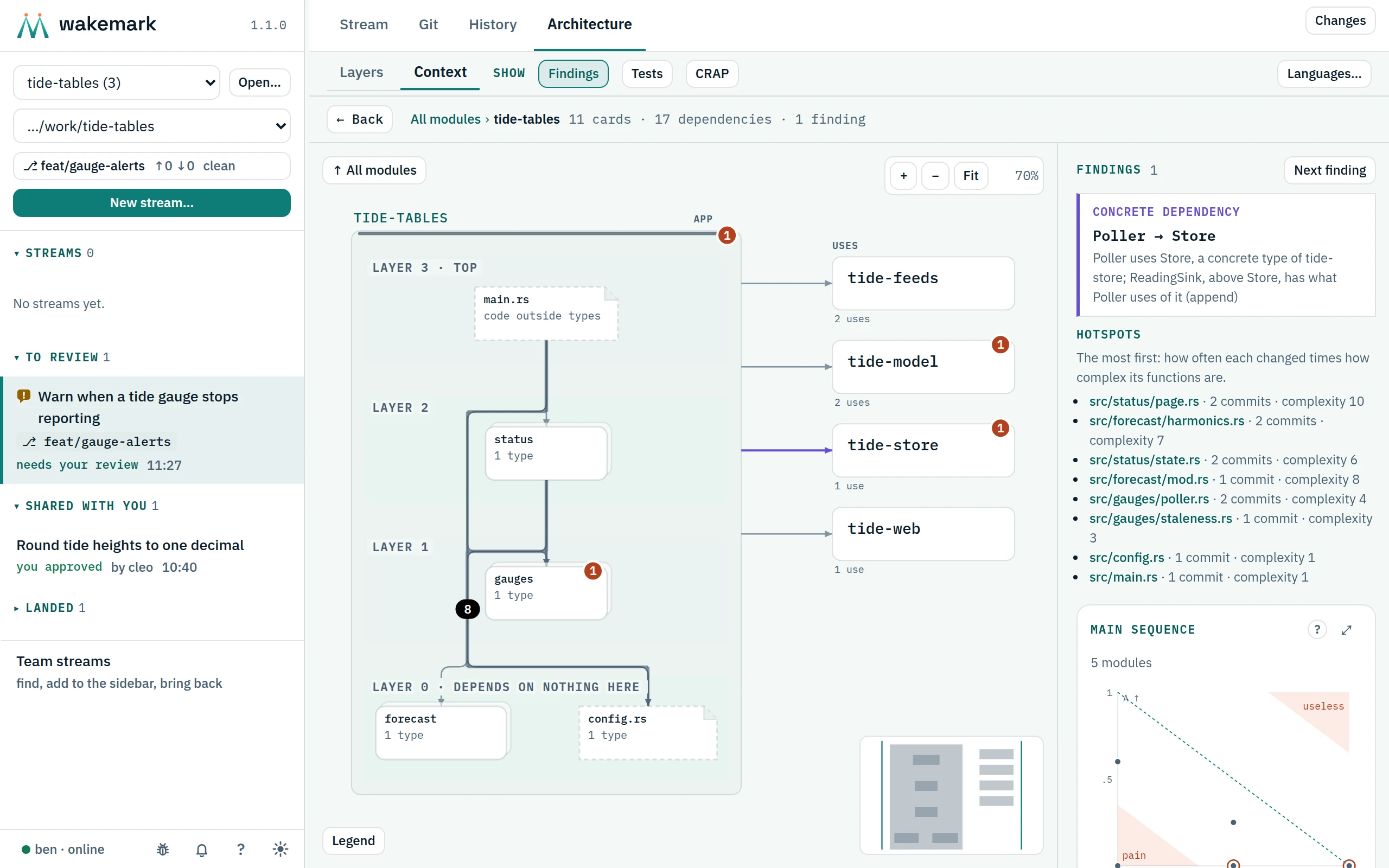
Findings
Findings lists what Wakemark finds wrong, in After and Diff those the changes make, with those already there behind a button. Next finding shows each in turn, with where it is and the fix it suggests, and a red count on a card says how many findings are inside it.
- a cycle between modules, or through their code;
- a module that starts to depend on a less stable one;
- a class that keeps another module's concrete class where an interface would do, with the interface to use;
- code using what another module keeps to itself, or a new public type nothing outside its module uses;
- Changes together: two modules whose files keep changing in the same commits though neither uses the other.
Hotspots under the findings lists the files that change most often and are most complex. The main sequence plot shows how abstract and how stable each module is; ? explains it.
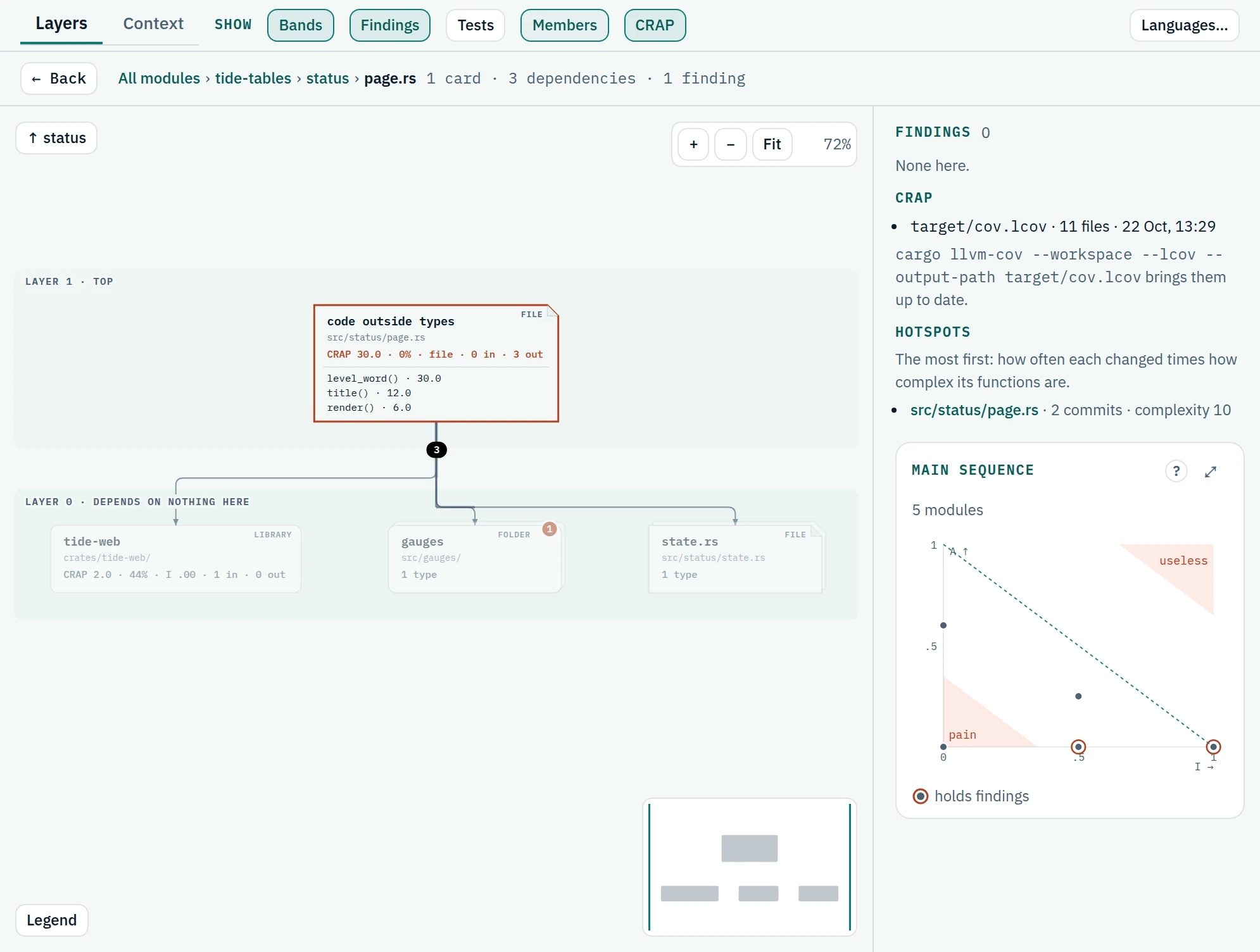
CRAP
CRAP puts on each card the worst score of its functions and how much of them the tests run,
CRAP 14.2 · 81%,
and with Members each function's score. The score weighs a function's complexity, which
Wakemark counts itself,
against its coverage, from the report your project's tests write where the policy's [crap]
says. Amber is above the
free threshold, red over the limit, and old run means the code changed since the tests measured it.
When no
report is named yet, ask the agent to set CRAP up with its wakemark-crap-setup skill.
The Architecture tab
The Architecture tab beside History draws the checkout as it is, to get to know a project you just checked out. Languages… there says which tools each language has on this computer, what each adds, and the command that gets a missing one.
Commit and push on the Git tab
The Git tab reads from top to bottom. Next is the one thing to do now, such as committing or pushing, with what comes after it. Under it is your branch, a button that opens the branches to switch to. Wherever you choose a branch in Wakemark, a card opens with a search field: type a few letters of its name. Then one line runs down the page: your uncommitted changes, the branch's commits with the newest on top, a marker where the remote branch stands, and at the bottom the branch your work lands on. Each action sits on the thing it changes: Push at the remote's marker, Rebase and Merge at the target's.
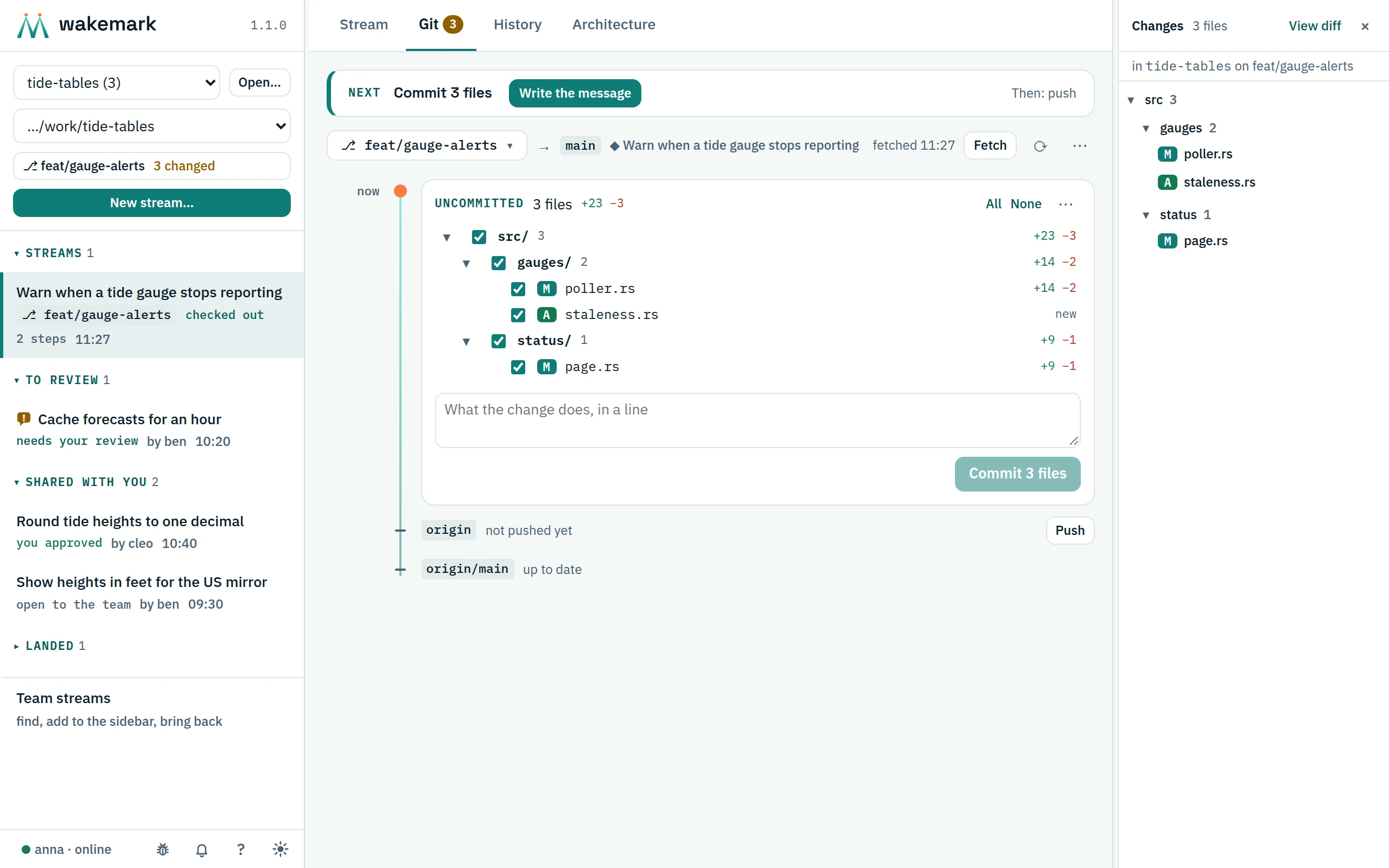
Commit here, from a terminal or from your editor: Wakemark links every commit on the branch to the stream, also after an amend, a rebase or a squash.
Uncommitted changes show in their folders, with the lines each adds and removes. A submodule shows its own changes under it, and a new folder opens to its files. Check what goes into the commit; a file's name opens its change.
- Discard on a row puts the file back as the last commit has it.
- Set aside in the ⋯ menu puts every change away, or only the checked ones. Bring back returns them. Git calls this a stash.
- Ignore… at the end of a new file's or folder's row, here and in the
Changes panel, and Ignore the …
you leave… under the list, add rules that make git stop listing them: a folder, a kind of file
(
*.o), or single paths. The rules go into.gitignore, shared once committed, or stay on this computer. Nothing is deleted, and a file git already tracks stays tracked.
A commit opens to its files when you click it. Its ⋯ menu holds what can be done with it:
- Change files or message… for the last commit: Take out moves a file's change back to uncommitted, the changes you check go in, and its message can be reworded. One button saves it all.
- Reword…, Squash into the one before and Drop for any commit of the branch.
- Revert makes a new commit that takes its change back.
- Copy to another branch… puts it on another branch without leaving this one, and New branch from here… starts a branch at it.
Squash … commits… at the target's marker makes the whole branch one commit. After each of these a line says what was done, with Undo.
Take from another branch…, in the ⋯ menu beside Fetch, lists the commits another branch has and yours lacks, and marks those that would conflict. Check some and Cherry-pick, or Merge the whole branch.
When a rebase, merge, cherry-pick or revert stops on conflicts, the tab shows only that: the commit in hand and its conflicted files. Open a file to edit it, or take one side whole with Take mine or the other branch's button. Continue works once no conflict is left. Skip this commit and Abort are beside it, and Ask the agent hands the conflicts to the stream's agent.
Get it reviewed
Click Reviewers… in the stream's header and pick your reviewers by name, handle or email. A group, such as @tide-core, adds everyone in it at once; your admin makes the groups on the Team tab of your account.
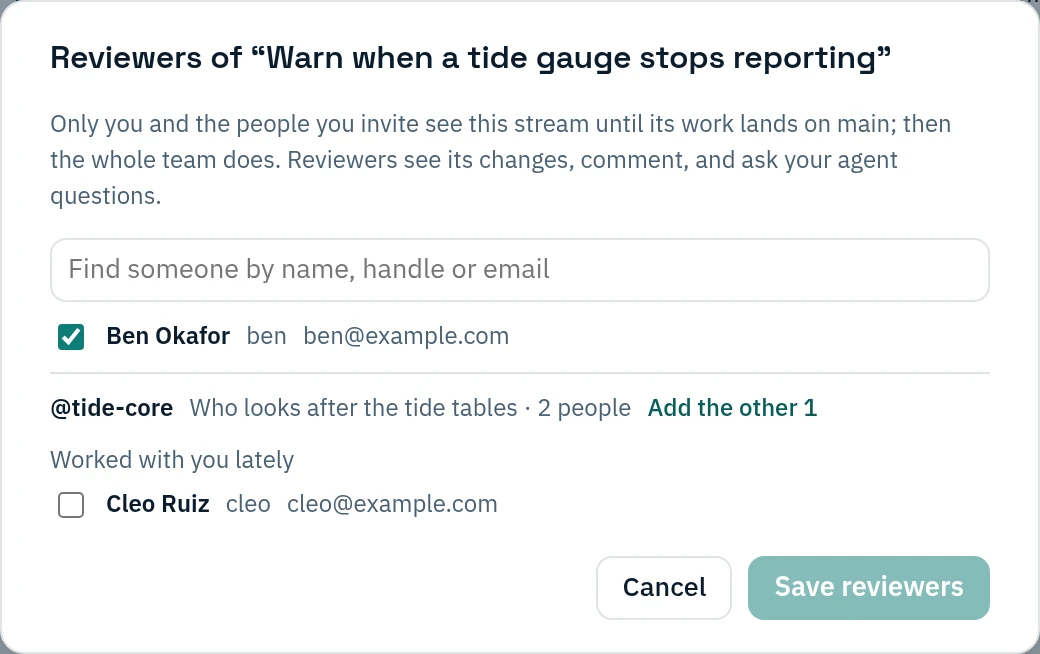
Reviewers see the transcript and every change as it happens. In the diff, they can comment on any line and ask the agent about it. The agent answers in the thread without changing any code.
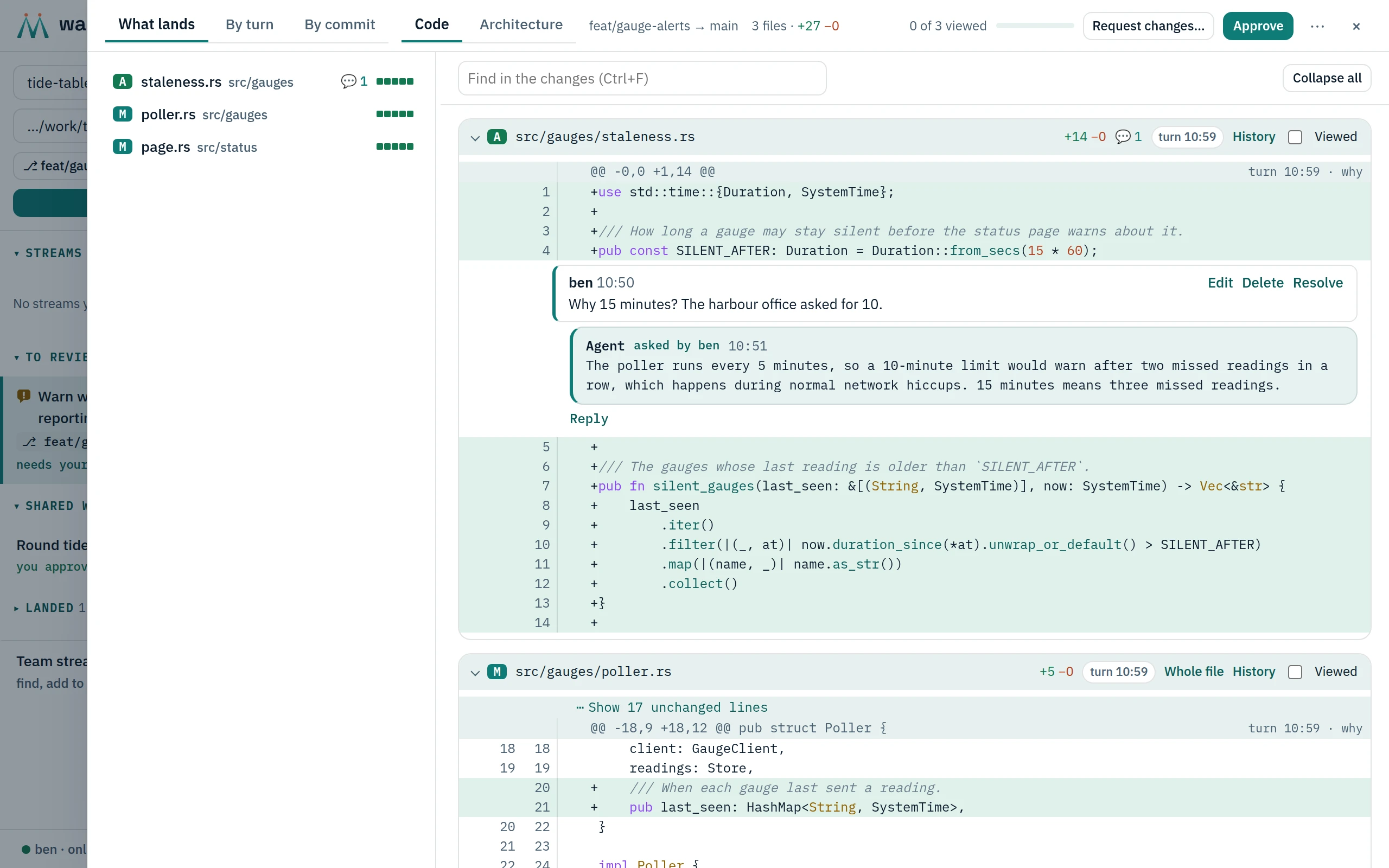
Ben goes through what lands file by file: v marks the file he is reading viewed and brings up the next. Each file names the turn that changed it, and each hunk the turn whose edit made it: turn … · why says why the hunk changed, and why each group of its lines did, worked out from the change and from what the stream says, Anna's plan included. A why the stream only implies starts with Likely:. Under it, What the stream says quotes the stream, with a tag for how close the quote is: from cites these lines and names this code down to the request the turn was given. When nothing in the stream speaks of the lines, the tag says turn only, by hand or outside the stream. Approve and Request changes… are in the diff's header, and again after the last file. A file stays viewed until its change changes. Files fold when you fold them or mark them viewed, and stay as you left them; Expand all beside find opens every one again.
An image in the diff shows as it was and as it is, and Bytes shows it in hex. An SVG drawing shows as the image it draws too, and Text shows its text diff; while find finds something in its text, or you comment on a line, it shows the text. Click an image to see it over the window, as large as fits: a click there shows it at full size around that point, a drag pans it, Before and After (or ← and →) switch versions without losing your place, and Esc closes it. Any other binary file shows its bytes in hex beside their characters, in a window that opens at the first change: Before and After switch which version it shows, with the bytes that differ from the other marked, and Next change and Previous change go from one change to the next. Only the part in the window is read, so a large file opens as quickly as a small one.
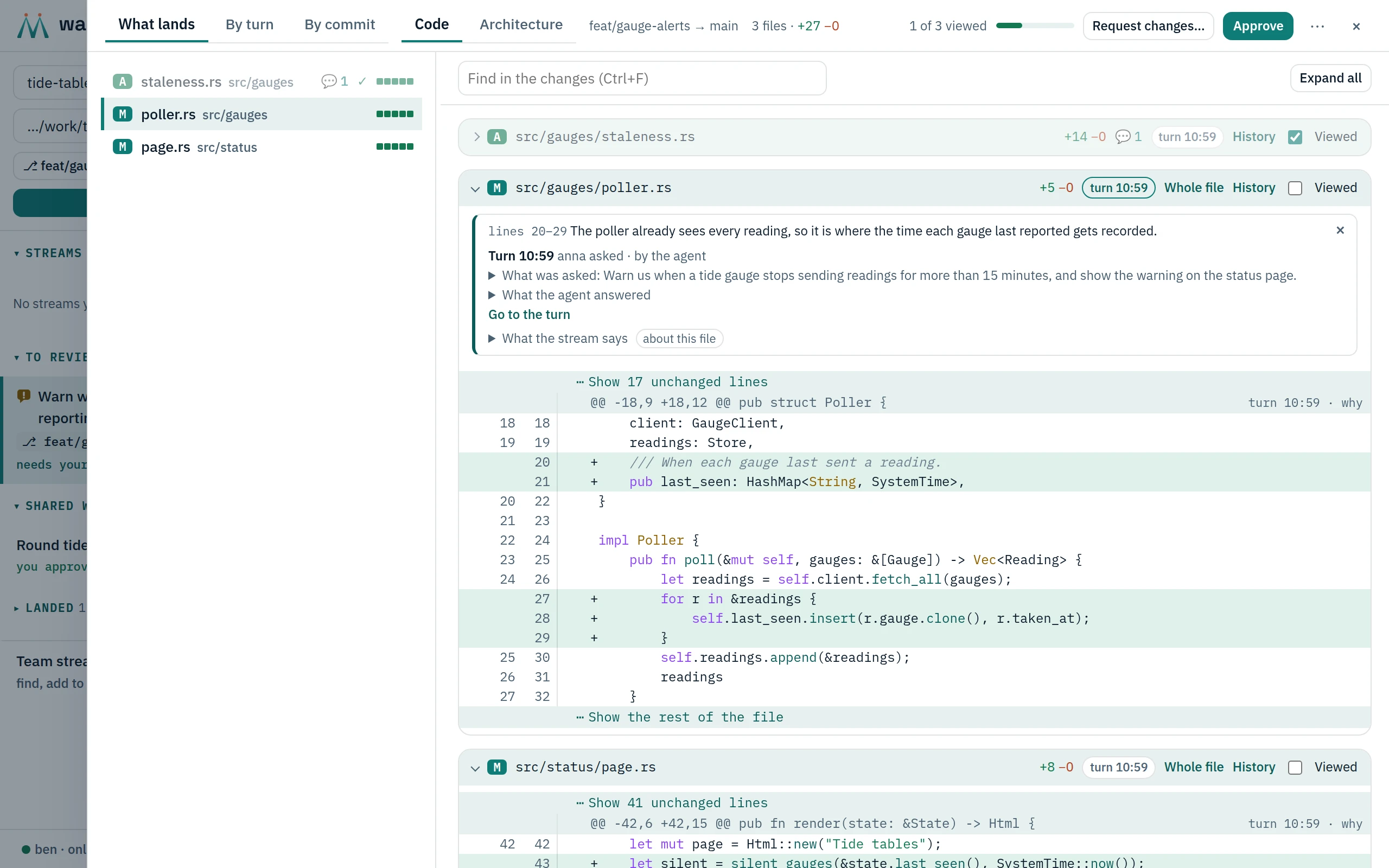
By turn, next to What lands, shows how the change grew: the stream's turns on a rail, each with what it was asked. Pick one to see only what that turn did. Each file says whether it lands as that turn left it, or which later turn changed it again. By commit does the same for the branch's commits.
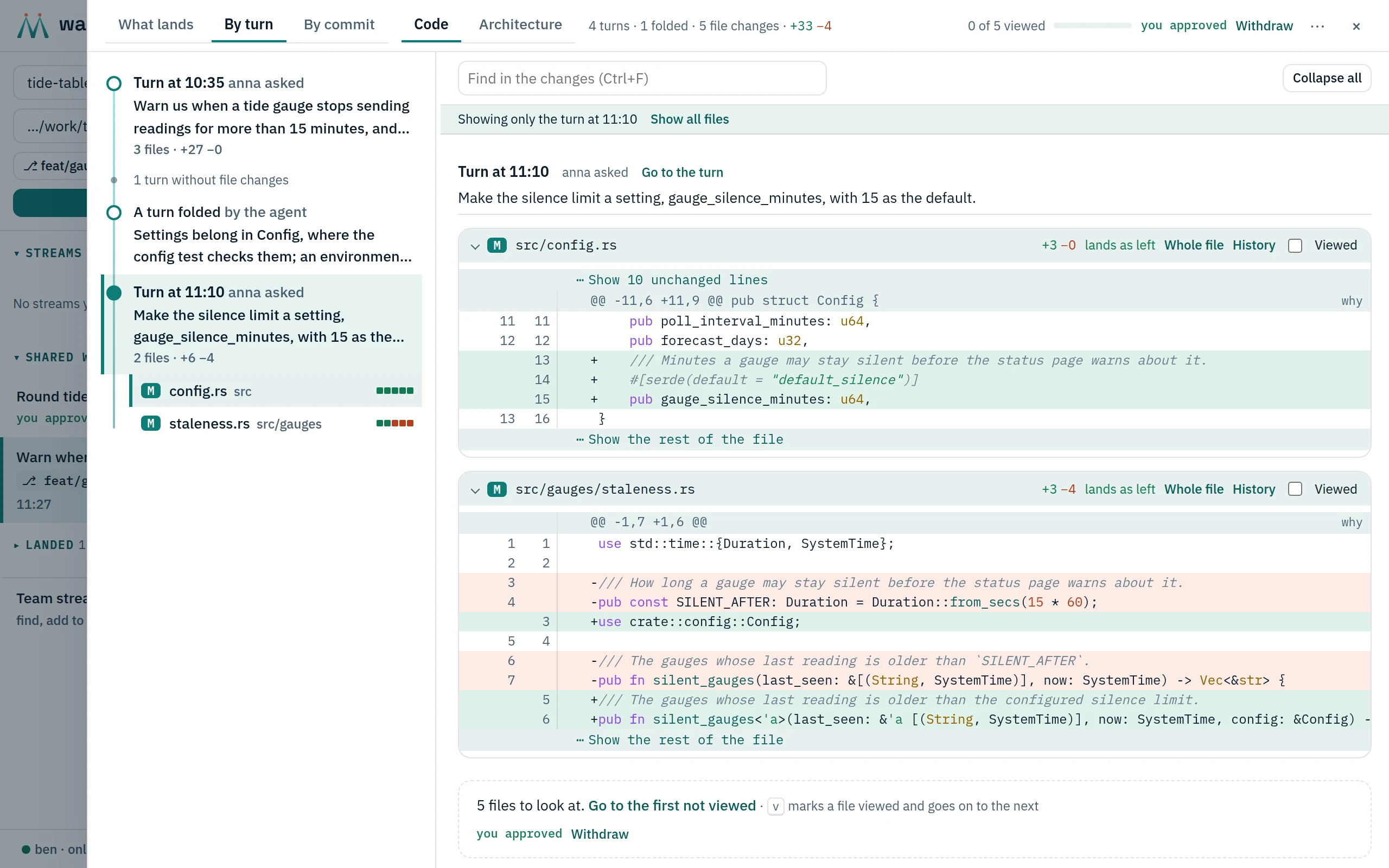
- Approve says the change is good as it is. When you commit again, the approval goes stale and the reviewer is asked to look again; Changed since your review shows only what is new.
- Request changes… blocks the stream until the reviewer approves or withdraws the request.
- Reviewers can also Give feedback, which waits for you to send it on to the agent.
Check what is still missing
The line under the stream's header is the ready checklist. It names only what still blocks landing, failures first, beside a badge such as ready to land, lands when ready, landing waits for you, blocked or second in the queue. Click it for every gate: who approved (1 of 1: ben, or none yet; No approvals needed when the policy asks for none), which comments are open, and each check's result. Run now starts a check that has not run, and Run again one that has. It folds away with Hide the checklist, with Esc, or when you click in the stream or the message box.
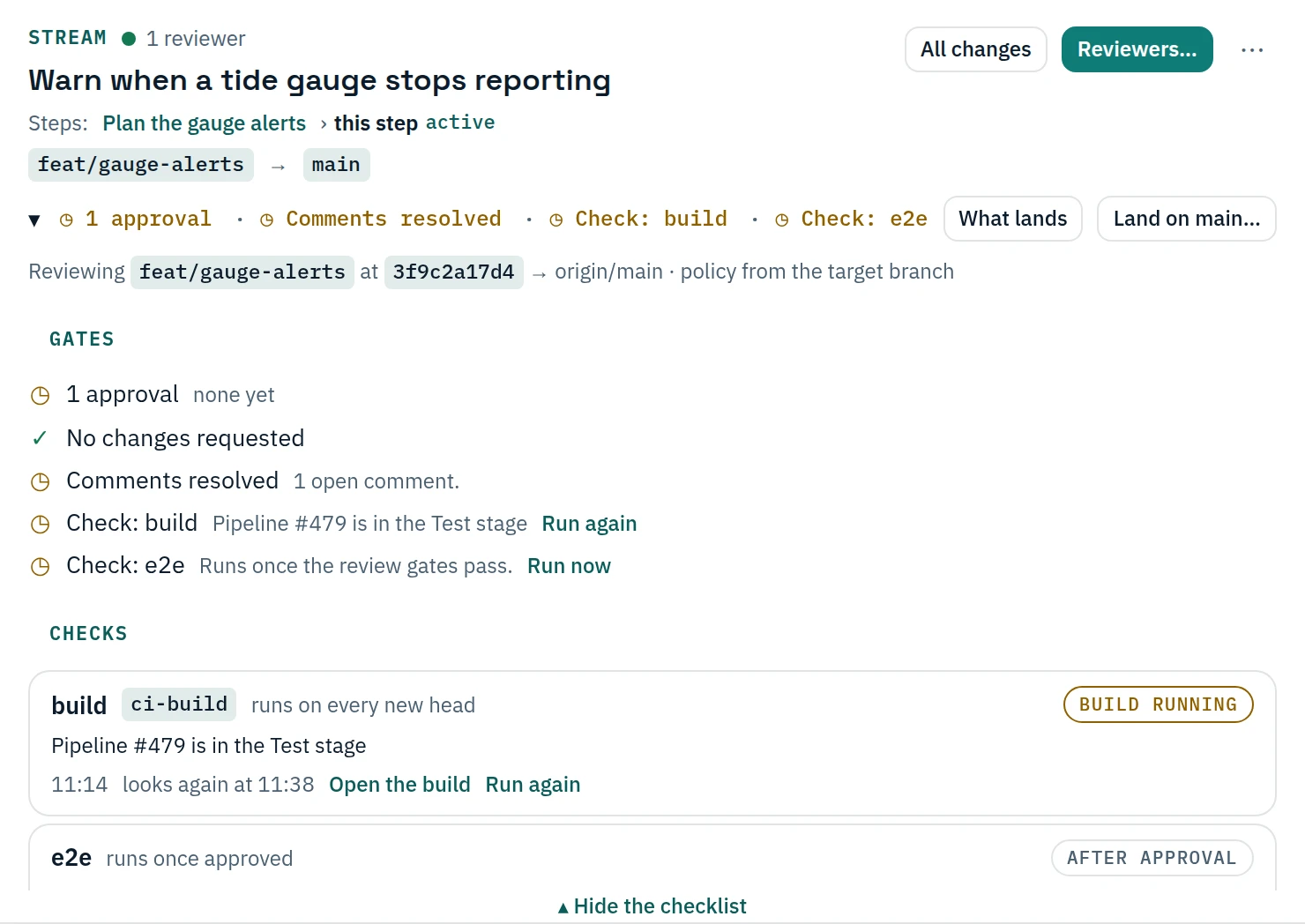
A check that cannot run yet says why: Runs once the check “build” passes., Runs once the review gates pass., Runs when you start it., or Runs once the stream is up for review. While the agent rebases the branch past conflicts with main, the checklist says Conflicts with main and how far it got, then Rebased onto main.
Let the agent run your team's checks
Wakemark does not connect to your build server or git server by itself. Your team teaches the agent its own tools
with skills: short instruction files kept in the repository as
.claude/skills/<name>/SKILL.md. A skill might
say where your build server is, how to find the build of a commit, and what counts as green. The project's
policy
file, .wakemark/policy.toml on main, says which checks a stream needs and which skill each one follows
(Policy reference).
When a check is due, Wakemark starts it in an agent session of its own on your computer, with your access. Checks on new commits wait until the stream is up for review: you invited reviewers, chose Land when ready, or clicked Run now. The agent reports the result with a link to the build, and the stream's agent hears the verdict as one line. If the build is still running, the check says when it will look again, and Wakemark comes back then; the stream shows one line per check with its verdict, however many looks it took.
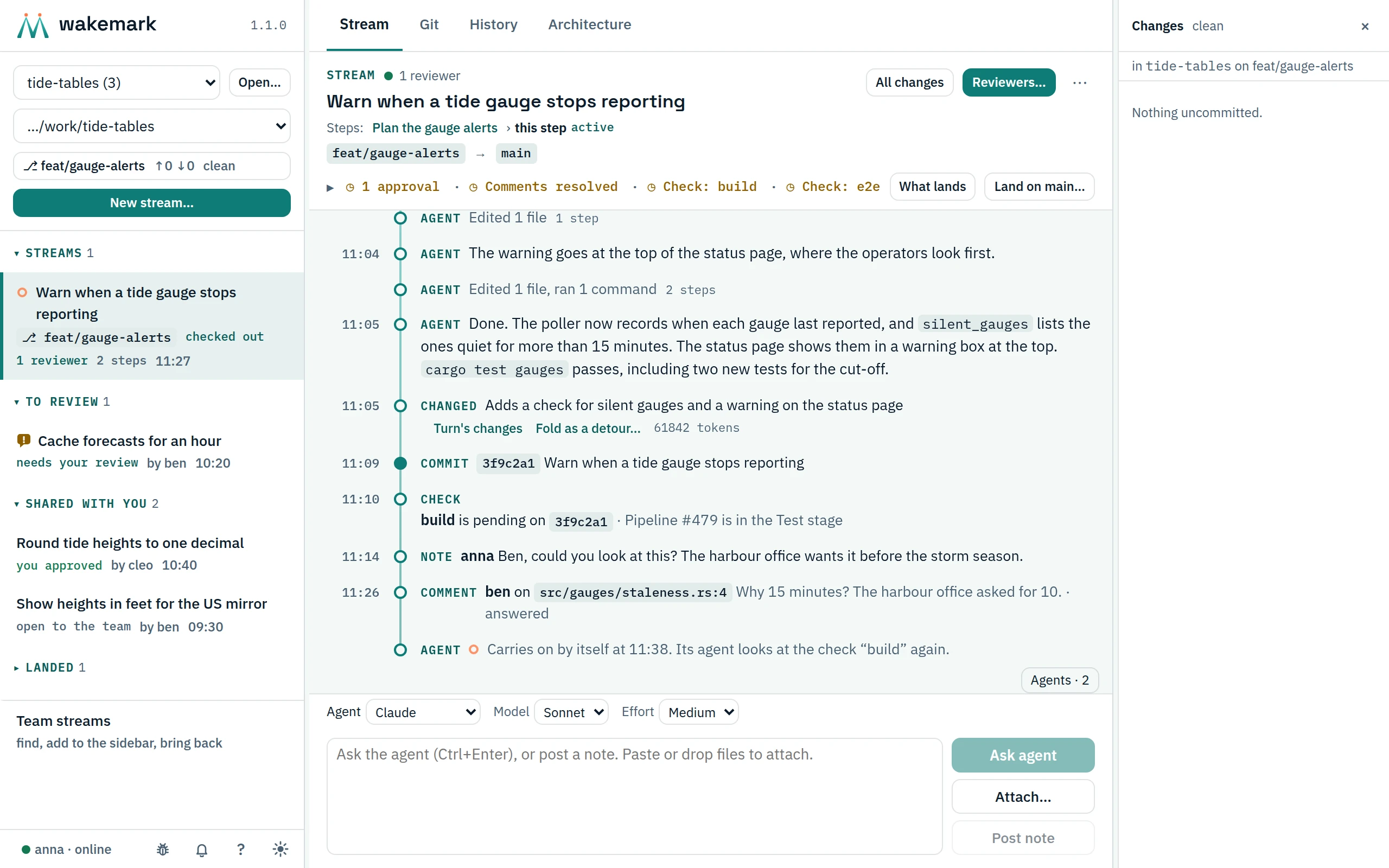
- A check may be allowed to push small fixes, such as a missed platform. Its fix is a new change, so reviewers approve again.
- To write the policy and the skills, ask the agent in any stream: "Set up the review policy for this project." It looks at your build setup and asks what it cannot find out.
- To try it before the team sees it, tell the agent it is just for you for now. It keeps the policy and skills on your computer instead of the repository. The checklist then says Your own policy and skills, on this computer., with Copy the path and Share with the team…, which adds them to the repository in a stream of their own.
Policy reference
The policy is .wakemark/policy.toml on the branch the work lands on, so a branch can't loosen
the rules for
itself; Wakemark also reads .agentstream/policy.toml there when there is no
.wakemark/policy.toml. Without a
file, a stream needs one approval and every comment resolved, and Wakemark lands it. Keys Wakemark does not know are
ignored, so a misspelled key does nothing. A policy Wakemark cannot read blocks every stream it counts for, and the
checklist says why. Anna's project has this one:
# What reviewers must do.
[review]
approvals = 1
resolved_comments = true

# A build of every new commit, once the stream is up for review.
[[check]]
name = "build"
skill = "ci-build"
instructions = "Green up to the Verify stage is a pass."
# Later looks at a running build: a script instead of the agent.
poll = "sh $WAKEMARK_SKILL_DIR/poll.sh"

# The end-to-end tests, once the review gates pass.
[[check]]
name = "e2e"
instructions = "Run ./tools/e2e.sh status and report what fails."
run = "approved"

# Instead of Wakemark landing it, one of these:
# [queue]                          # through the merge queue
# [land]                           # by the team's own process
# skill = "gitlab-merge-request"
| Key | Values | Default | Meaning |
|---|---|---|---|
[review] approvals | a number | 1 | Approvals of
the current version a stream needs; 0 needs none. |
[review] resolved_comments | true,
false | true | Every comment must be resolved. |
[[check]] name | text | needed | What the checklist calls the
check. Unique; not landing or conflicts. |
skill | a skill's name | The skill the agent follows. A check needs a skill, instructions or both. | |
instructions | text | The job in plain words, or rules on top of the skill. | |
run | review, approved, manual,
queue | review | When it runs: see below. |
required | true,
false | true | Landing waits for it. An optional check shows but does not block. |
fix | true, false | false | The agent may commit and push small fixes. |
after | a check's name | A check listed earlier that must pass on the same commit first. | |
poll | a command | Looks again at a pending check instead of the agent: see below. | |
architecture | a list of findings | Wakemark judges the architecture itself, no skill needed: see below. | |
[architecture] layers | a list of { name, modules
} | The project's layers, top to bottom: see below. | |
[queue]
branch_prefix | text | wakemark/queue/ | Where the merge queue pushes candidates to build. |
[land] skill, instructions | as for a check | How the stream's agent lands it. Not with the merge queue. |
run:reviewon every new commit once the stream is up for review;approvedonce the review gates pass;manualwhen you click Run now;queueon the stream's candidate in the merge queue.- A
[queue]section, or anyrun = "queue"check, makes streams land through the merge queue. The queue needs at least one approval. - A pending check is looked at again after the minutes it asks for: 10 when it does not say, between 1 and 240.
pollruns withshin the checkout for each later look; the first run is always the agent's. It getsWAKEMARK_CHECK,WAKEMARK_HEAD,WAKEMARK_BRANCH,WAKEMARK_TARGETandWAKEMARK_SKILL_DIR(the skill's folder), and its output ends with a JSON object:{"verdict": "pending", "summary": "Pipeline #479 runs", "url": "…", "recheck_after_minutes": 10}. The verdict ispass,failorpending;reasonworks forsummary. When it fails, takes over 10 minutes, prints no verdict, or finds a failure afixcheck may fix, the agent looks instead.architecture = ["cycle", "concrete-dependency"]fails the check when the stream's changes make one of those findings (cycle,cycle-through-code,unstable-dependency,concrete-dependency,reaches-inside,wider-than-used,against-layers,separate-part,unused-dependency,changes-together;[]for any). Wakemark judges it on every new commit, with no agent; withfix = truethe agent is asked to fix what it finds.layers = [{ name = "app", modules = ["apps/*"] }, { name = "core", modules = ["core", "libs/model"] }]lists the layers from the top; a module is named by its name or folder, or with/*every module in a folder. A module that depends on one in a layer above its own is a finding, against the layers. Modules in no layer are not judged. The stream's agent can propose the layers from the architecture for you to confirm.- Your own policy is
policy.tomlin the project's folder underprojectsin Wakemark's data folder, with its skills beside it inskills/<name>/SKILL.md; Copy the path in the checklist gives the folder. It counts for your streams only while the target branch has no policy of its own.
Land on main
Each project lands in one of three ways, set in its policy:
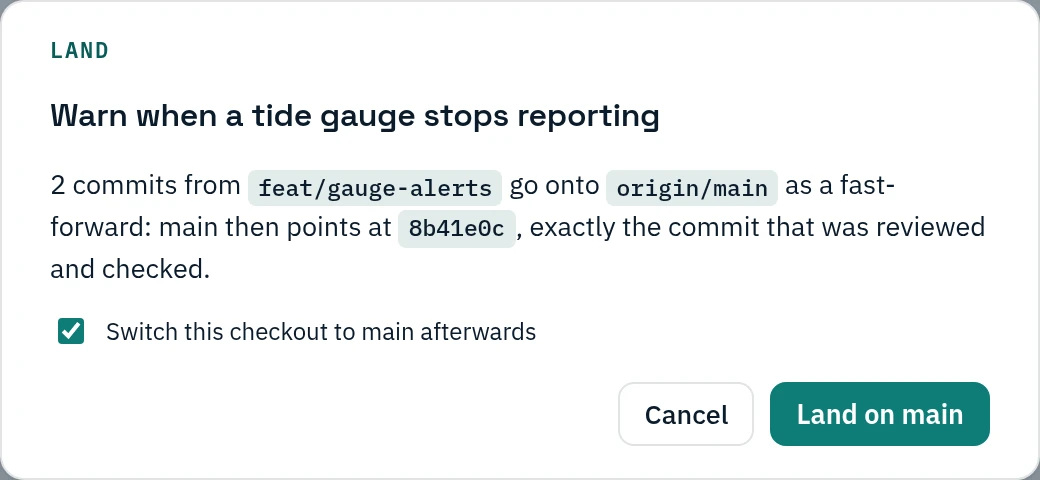
- Wakemark lands it. When the checklist is all green, click Land on main. Main then points at exactly the commit that was reviewed. If main has moved on, Wakemark offers to rebase first; a clean rebase keeps the approvals. Switch this checkout to main afterwards leaves your checkout on main once it has landed.
- Through the merge queue. See below.
- By your team's own process. A
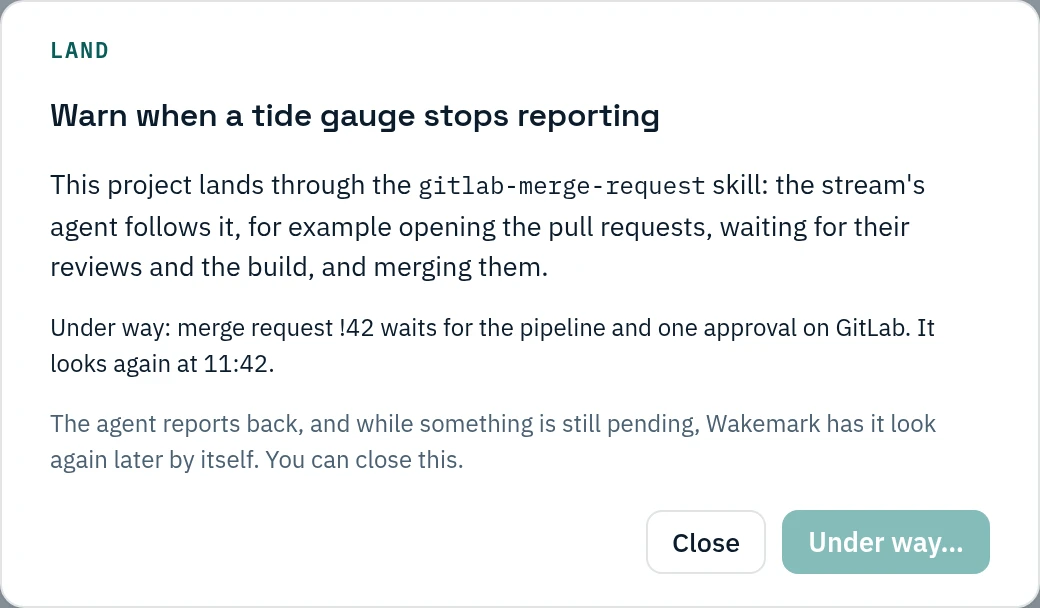
[land]section in the policy names a landing skill. Start landing then has the stream's agent follow it: for example, open a pull request on your git server, wait for its reviews and build there, and merge it. Your team can keep reviewing in pull requests this way.
The Land dialog and the checklist show how far the agent got, and the stream shows as landed once main has its commits, also squashed. Each look reads the pull requests as they are now on your git server, and starting the landing is your go-ahead for the agent to answer and resolve the reviewers' comments the branch already answers. When it waits for something only you can settle, such as a reviewer's question that needs your decision, the checklist says landing waits for you and why, a notification tells you, and it looks again as soon as you act in the stream.
Land when ready
You don't have to come back when the last approval or build arrives. While the checklist still waits for something, the Land dialog offers Land when ready: it says what is missing and what will happen, and you can close it. Wakemark then lands the stream by itself as soon as nothing is missing, the way your project lands: on main, by its landing skill, or by joining the merge queue. If main has moved on, Rebase and land rebases the branch first; the checks that run on every new commit run again before it lands.
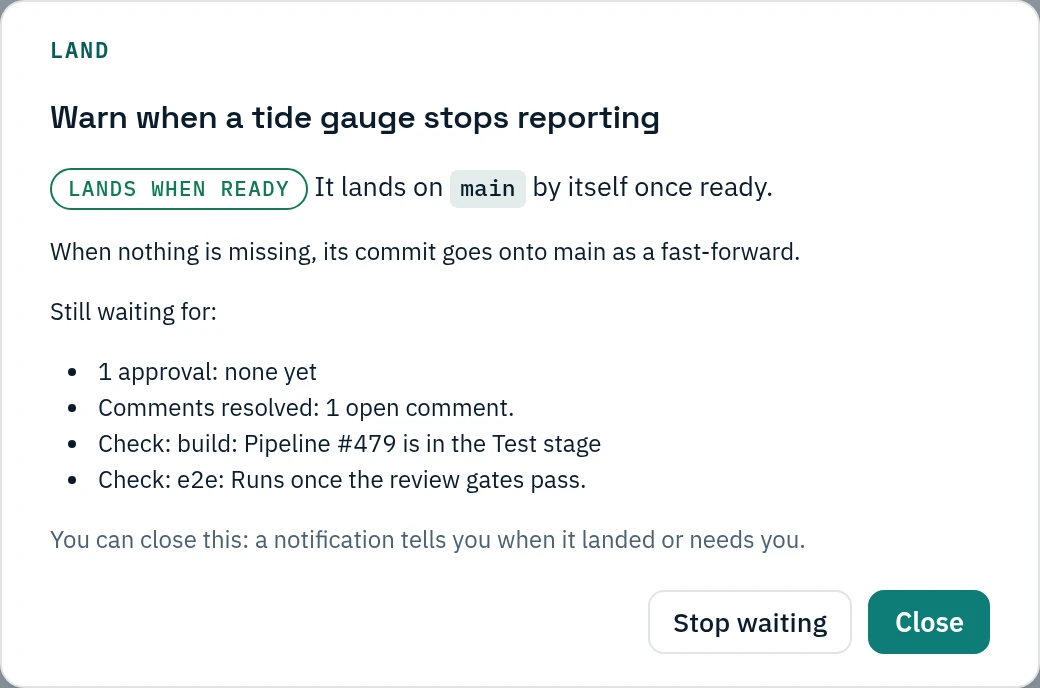
- The checklist shows lands when ready and what it still waits for, and the stream's row in the sidebar says so too. Reviewers see that your app lands it once they approve.
- When something only you can do stands in the way, such as uncommitted changes in the way of a rebase, a rebase that conflicts, a push your git server refuses, or a reviewer's question on the pull request that needs your decision, the checklist says landing waits for you and why, and a notification tells you. Once you have dealt with it, it goes on by itself.
- What it waits for is read from the stream as it is now: a comment resolved before or after you chose Land when ready never holds it. To have your agent settle open comments, ask it to: it answers or fixes what it can, resolves the threads the branch now answers, and leaves the ones that need your decision open for you.
- It lands from your computer, with your git access, while the app runs; after a restart it carries on. Stop waiting, beside the land button or in the Land dialog, stops it.
Through the merge queue
If your project uses the merge queue, the button beside the checklist says Queue when ready while something is missing, and Add to queue for main once nothing is. Each stream in the queue is rebased onto the one ahead of it and built at the same time as the others. Main moves forward to each stream as soon as its build is green.
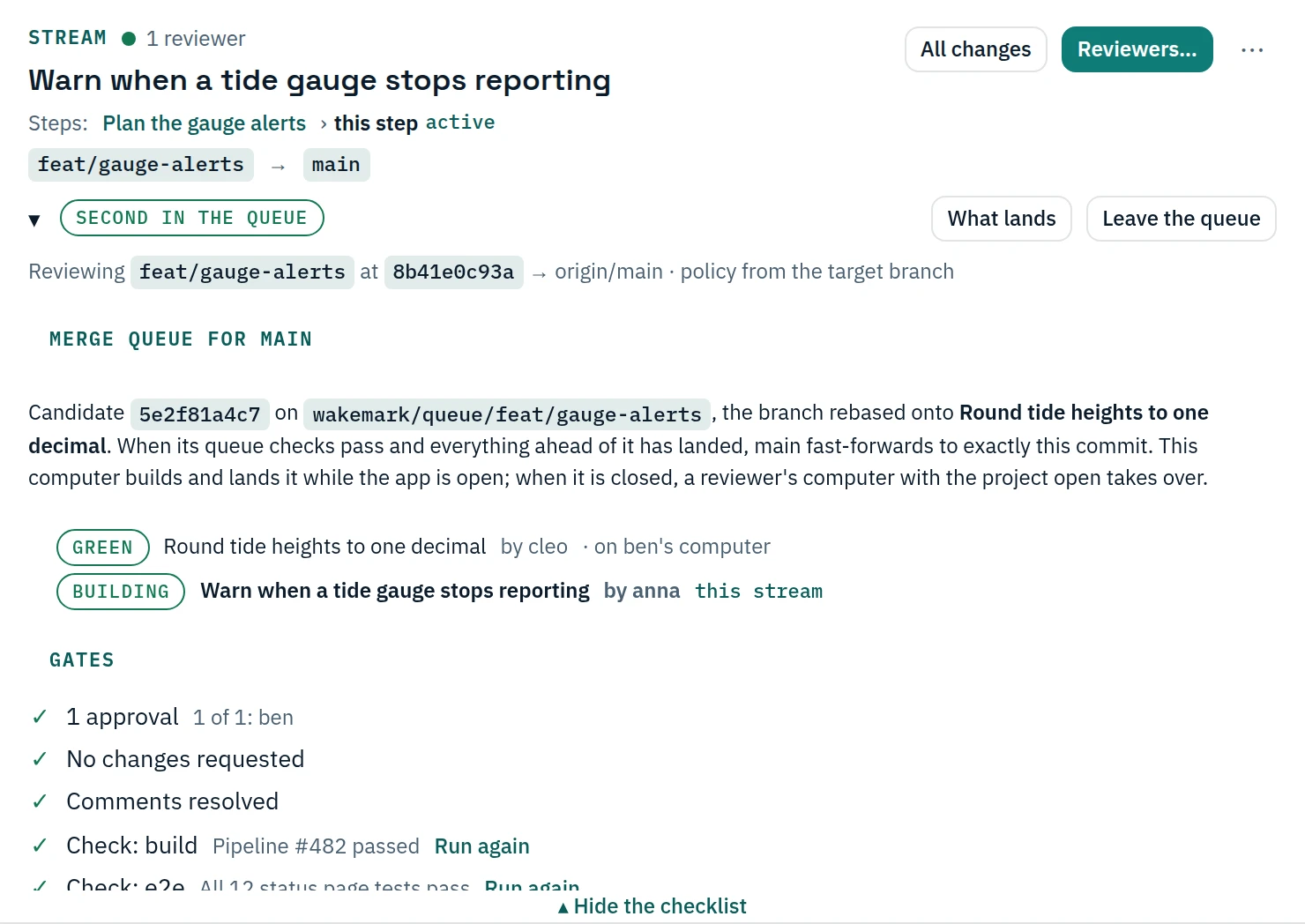
- A stream whose build fails leaves the queue with the build's report. The streams behind it are rebuilt without it.
- A stream that conflicts with the one ahead of it leaves the queue, and its agent rebases it and resolves the conflicts. Once reviewers approve the result, it goes back in.
- A new commit or a lost approval also takes a stream out. Leave the queue takes it out by hand.
- Your computer does the rebasing and landing while the app is open. When it is closed, a reviewer's computer that has the project open takes over, and the queue says whose. To stop your computer helping, clear Help move the merge queue while authors are away in your account.
Find work later
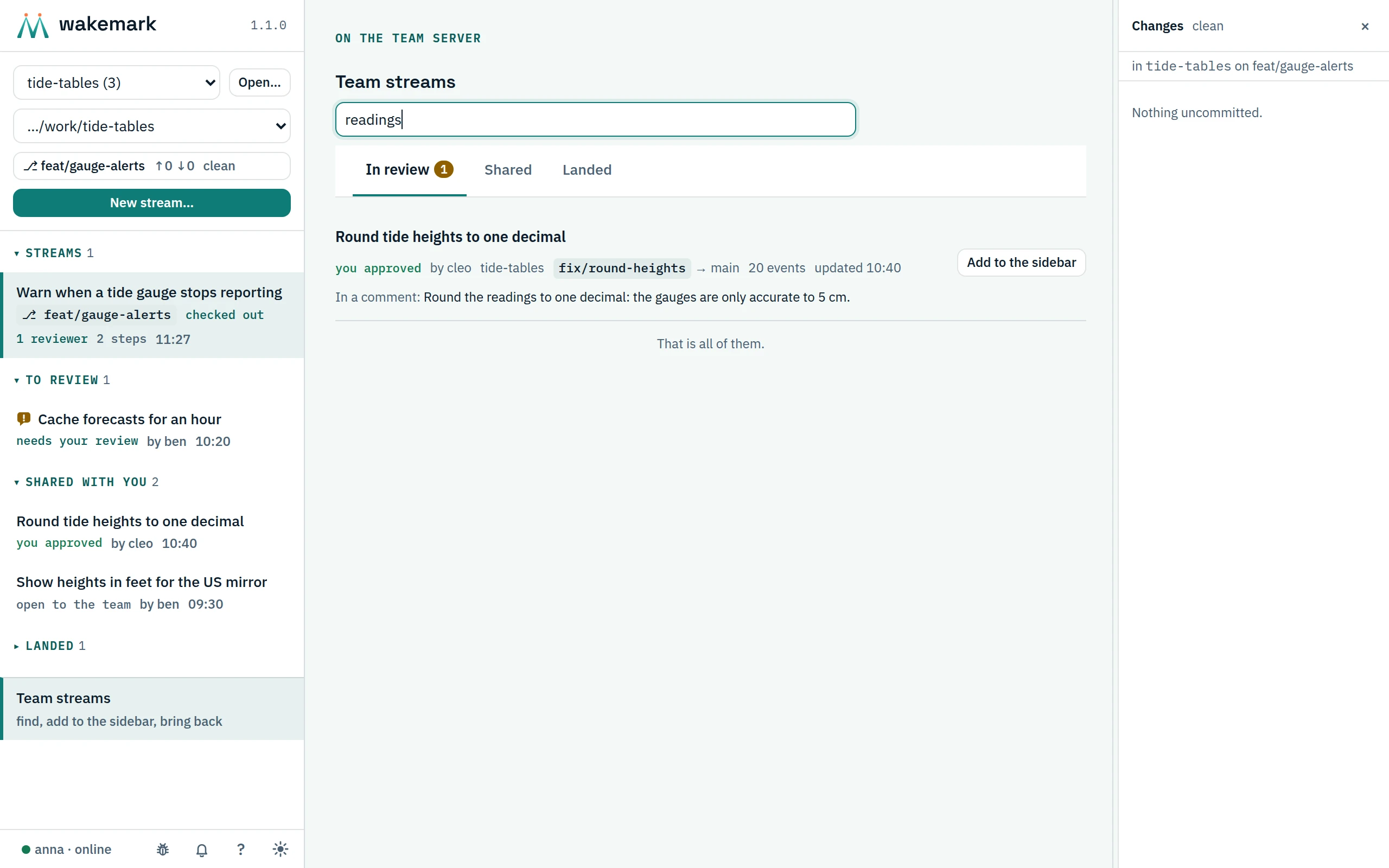
Team streams in the sidebar lists every stream you can see on the team server: in review, shared, and landed. Its search finds a stream by its title, its author or anything written in it, and shows where your words are. Add to the sidebar brings one into your sidebar, and Show in the sidebar one you hid.
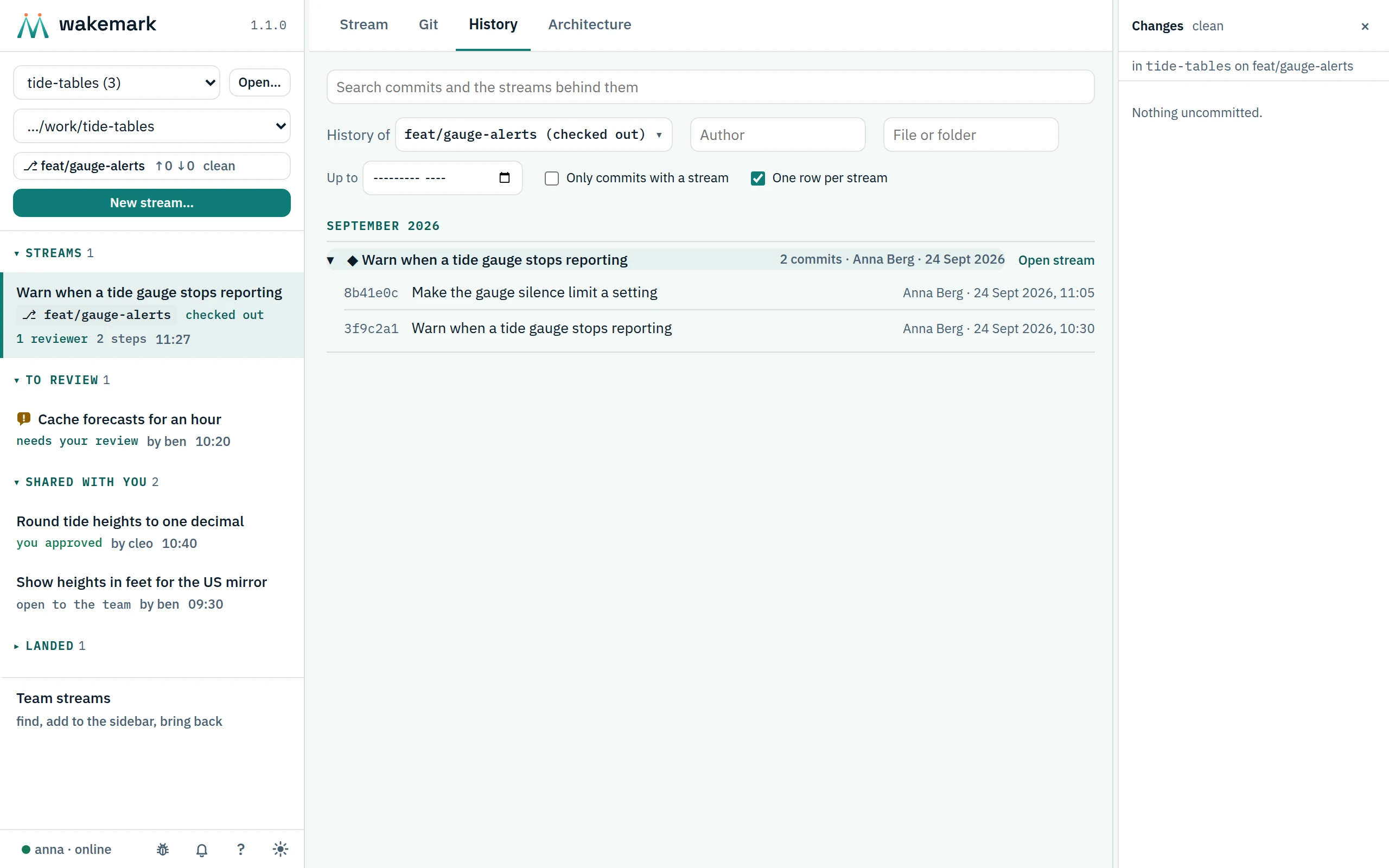
The History tab shows the commits of any branch under the month each was committed, with the stream each one came from. A commit that was rebased or cherry-picked long after it was written says when it was written when you point at its date. Its search box looks in the commits' messages, ids and authors, and in everything written in the streams behind them, here and on the team server. History on a file in a diff shows that file's commits, in its submodule's own history when it is in one.
A landed stream stays open. When something comes up months later, ask its agent: it continues with the whole history, on today's main.
Weeks later, Cleo wonders why a silent gauge only shows up after 15 minutes: the harbour office would like 10.
She
asks her agent, "Why does the gauge warning wait 15 minutes?" The agent finds the commit that set
the limit, the
stream Anna built it in, Ben's question about it and the answer: the poller reads the gauges every 5 minutes,
so
15 minutes is three missed readings, and a single network hiccup doesn't raise an alarm. It also finds that the
limit is the gauge_silence_minutes setting. Cleo changes a setting instead of the code.
Good to know
- Before anything syncs, Wakemark scans the stream for things that look like secrets, such as tokens, private keys
and password assignments, and keeps those parts off the team server. Files named like secrets, such as
.envand*.pem, stay out of it too. The scan does not look inside other files, and your agent's model provider sees whatever the agent reads. - The app's version shows beside the Wakemark logo at the top of the sidebar.
- When your team server has a newer desktop app, Update available shows at the bottom of the sidebar. It saves the installer and checks that it comes from the publisher; your streams, settings and sign-in stay.
- Without a team server, the app asks wakemark.io once a week for its newest version, and shows Wakemark … is out when there is one; the team server does the same for the team's admins. Neither sends anything about you. A snap gets its updates from the Snap Store instead.
- Keys: Ctrl+Enter sends a message to the agent, and a comment. In a diff, v marks the file under the pointer viewed and goes on to the next, n and p go to the next and previous file, Ctrl+F finds in the changes, and Esc takes back the find, then what is picked, then closes the diff. Its ⋯ menu lists them too.
- While the app is open, your system's notifications tell you what needs you in a stream you are not looking at: your agent finished or asks for permission, a review or comment came, a check failed or a long build finished, or a stream asks for your review. The bell at the bottom of the sidebar turns each kind on or off. On Linux, a kind can also stay on screen until you close it, and clicking a notice opens its stream.
- Up to 10 people a month may share work through a team server under the free licence; Wakemark Business covers more. When the team goes over, a notice at the top says so, and everyone keeps working for 30 days. After that, people beyond the limit that month keep their new work on their computer, and it is shared when there is room. Licence in your account shows the month's count.
- The agent knows how Wakemark works. Ask it "Why isn't my stream ready?".
- The bug button, beside the bell at the bottom of the sidebar: Open wakemark.featurebase.app opens Wakemark's board on Featurebase in your browser, where you post a bug or an idea and vote on others'.
- This guide is also in the app: click ? at the bottom of the sidebar.
Run the team server
One person sets up the team server, on a machine the team can reach: it keeps the streams, the reviews and the merge queue, and serves the page where people create their accounts and get the app. Your code stays on your git server, and the agents run on each person's own computer with their own login.
The quickest way, on a Linux machine with Docker:
- Download
wakemark-server.tar.gzfrom the download page and unpack it:tar xzf wakemark-server.tar.gz && cd wakemark-server. - Copy
env.exampleto.env, and set in it the code people need to create an account (WAKEMARK_INVITE) and a long random password for the server's database (POSTGRES_PASSWORD). - Start it:
docker load -i wakemark-server-image.tar && docker compose up -d. - Open
http://<the machine>:8740and create the first account. It is the team's admin. - Invite the team: give them the address and the code, or make invitation links under Team in
your account.
Put the desktop app's installers in the
downloadsfolder, so everyone can get the app from that page.
With Wakemark Business, put the licence files you received, licence.toml and
licence.toml.sig, in the
licence folder. TEAM_SERVER.md in the same package goes further: HTTPS, a database of your
own, running
without Docker, backups, upgrading, and how active users are counted.
Settings for IT and power users
The app reads these environment variables when it starts:
WAKEMARK_ACP_REGISTRY: the ACP Registry list the app offers, as an address or a file, such as your company's copy;offoffers only the list the app came with.WAKEMARK_DATA_DIR: keeps the app's data in this folder instead of the usual one.WAKEMARK_LOGIN_SHELL=off: on Linux, the app does not ask your login shell for its settings (see below).OPENAI_API_KEYorCODEX_API_KEY: Codex's key, if you don't sign in withcodex login.GEMINI_API_KEY,GOOGLE_API_KEYorGOOGLE_GENAI_USE_VERTEXAI: Gemini CLI's key, or Vertex AI. Claude uses your Claude login.
The app starts the built-in agents with npx --yes and a fixed version of their adapter:
@agentclientprotocol/claude-agent-acp, @agentclientprotocol/codex-acp, or
@google/gemini-cli --acp. npx
downloads the adapter from the npm registry the first time. If your network reaches npm only through a company
mirror or proxy, set it in npm's own settings (npm config set registry …, proxy,
https-proxy); npx follows
them. Agents that run with uvx follow uv's settings in the same way, such as
UV_INDEX_URL. An adapter your
company installed goes in with More agents… → Add your own….
The ACP Registry's list comes from cdn.agentclientprotocol.com, and agents that download come
from where the
registry says, usually GitHub. With neither in reach, add agents with Add your own….
Where to set the variables:
- Linux: set them where your shell sets up your terminal, such as
~/.bashrcor~/.profile, then start Wakemark again. When it starts, the app asks your login shell for its settings, so the agents get them, and Node.js installed with nvm, fnm or volta, also when you start Wakemark from the menu.WAKEMARK_DATA_DIRandWAKEMARK_LOGIN_SHELLare read before that, so set those two in~/.profileand log in again. - Windows: set them under Edit environment variables for your account, then start Wakemark again.